Region Display
Change how the areas placed by spells, features and effects look on the scene.
Overview
Every region in Foundry is drawn with the same diagonal hatch, so a Web, a Moonbeam and a Spirit Guardians look alike at a glance. Region Display lets each area get its own look: a pattern, colours, a border, or a scattering of damage or condition icons.
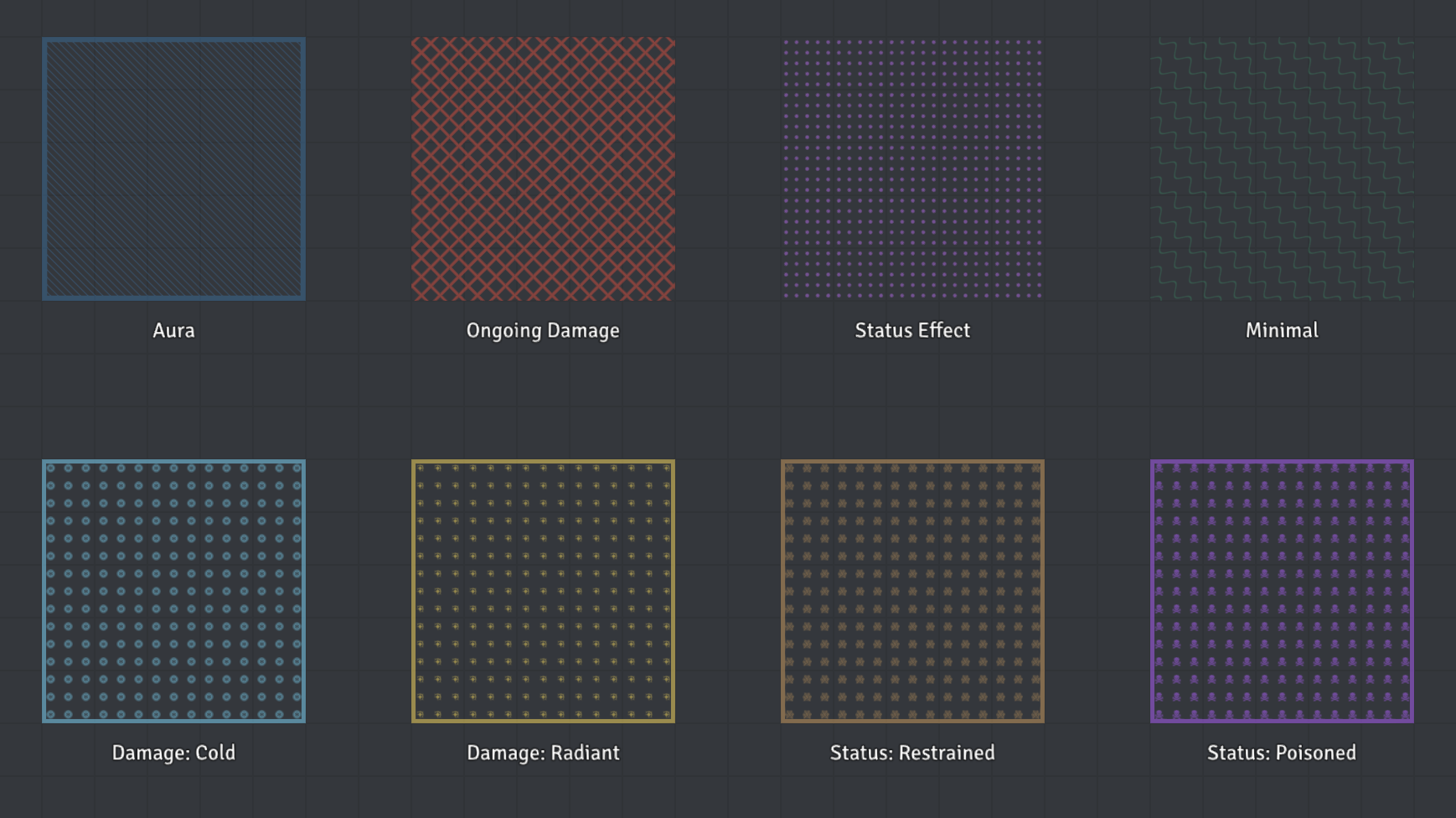
It is meant to make areas with ongoing saves, damage or conditions easy to tell apart. It is not meant to replace animation modules such as Automated Animations, or to display JB2A-style animated assets.
The cost is small: with 40 regions on a scene using a mix of patterns and images, it adds about 0.2ms per frame in the worst case.
Enabling
In Configure Settings > D&D Beyond Importer:
- Enable Region Display Profiles: draws areas using DDB Importer's display profiles. This is on by default. Turning it off leaves every region with Foundry's own look, hides the Region Display options described below, and stops imports adding display behaviours. Every connected client must reload after changing it.
- Region Display Profiles: the Edit Profiles button opens the profile editor. Only a GM who can change world settings can use it.
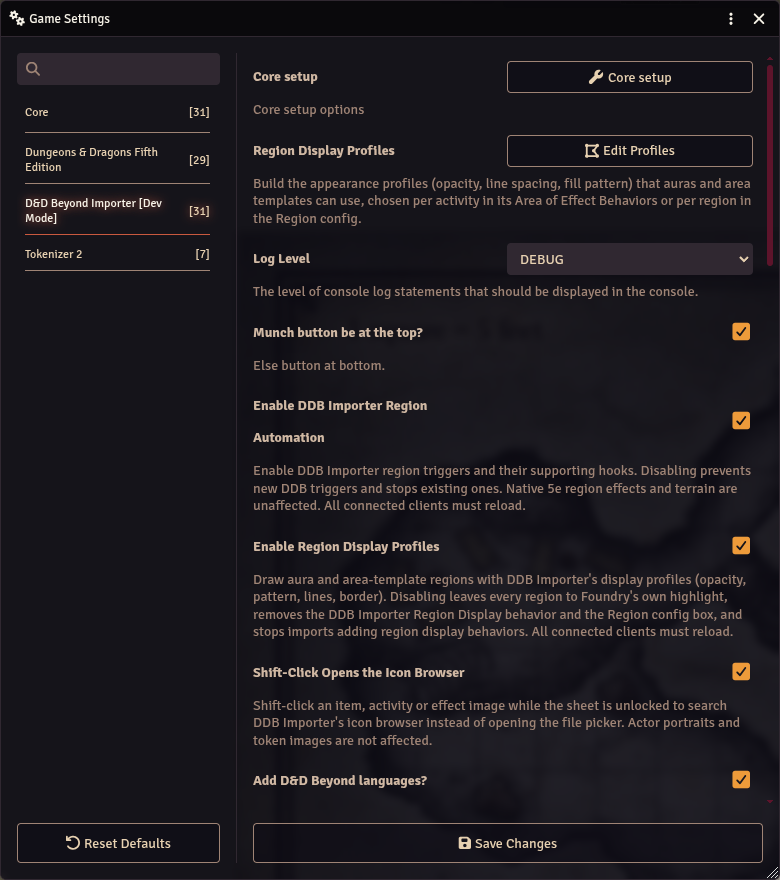
Region Display is independent of Region Behaviours, so you can use it with the region automation turned off.
Profiles
A profile is a named look. DDB Importer ships these:
| Group | Profiles |
|---|---|
| General | Aura (diagonal lines with a border), Ongoing Damage (crosshatch), Status Effect (dots), Minimal (waves) |
| Damage types | Damage: Acid, Damage: Cold and the other 11 damage types, each showing the D&D5e damage icon in its own colour |
| Conditions and statuses | Status: Restrained, Status: Poisoned and 42 more, each showing the D&D5e condition icon |
The General profiles use the region's own colour, so they match the colour of the player who placed them.
Profiles are stored in the world, so every player sees the same looks, and saving a change updates the scene for everyone straight away.
Which profile an import uses
When you import or munch content with this setting on, DDB Importer adds a DDB Importer Region Display behaviour to each activity that places an area, and chooses the profile from what the activity does:
- An emanation with behaviours, such as Spirit Guardians, gets Aura.
- An area that deals damage, directly or through its triggers, gets Damage: type when there is one damage type, or Ongoing Damage when there are several. Moonbeam gets Damage: Radiant, and Fireball gets Damage: Fire.
- Otherwise, an area that applies a condition gets Status: condition when there is one, or Status Effect when there are several.
- Anything else with behaviours gets Minimal.
Areas with no damage, conditions or behaviours keep Foundry's look. Some content is set by hand instead; Web, for example, always uses Status: Restrained.
Re-import content to pick up the display behaviour.
Editing profiles
Click Edit Profiles in the module settings, or the gear button next to any profile dropdown.
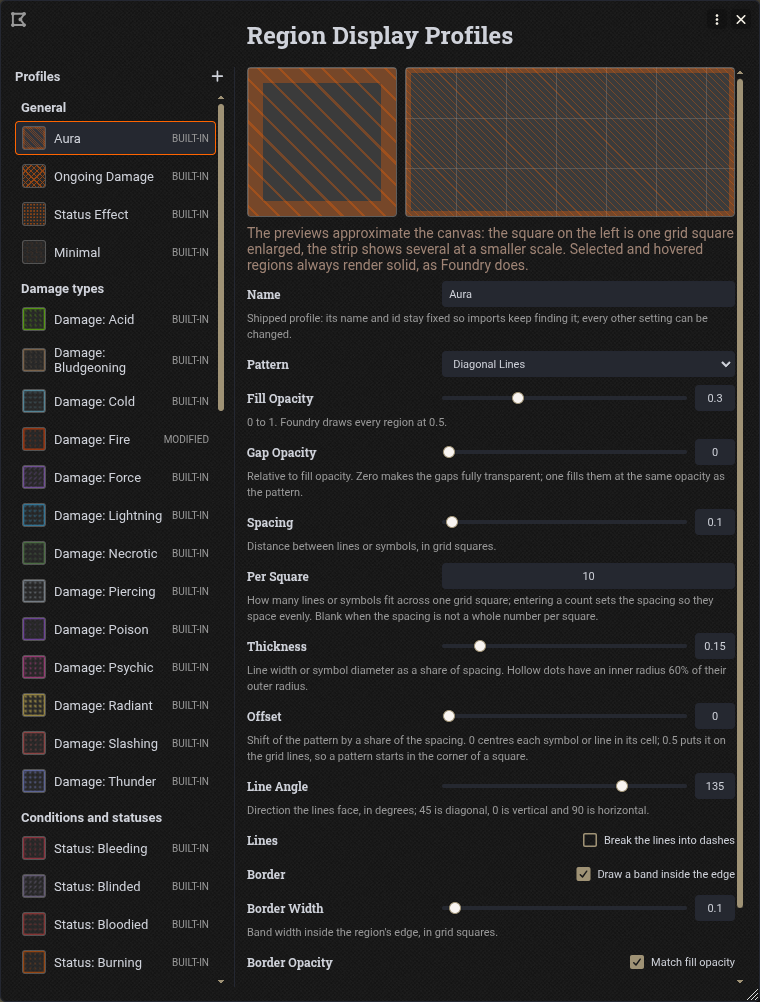
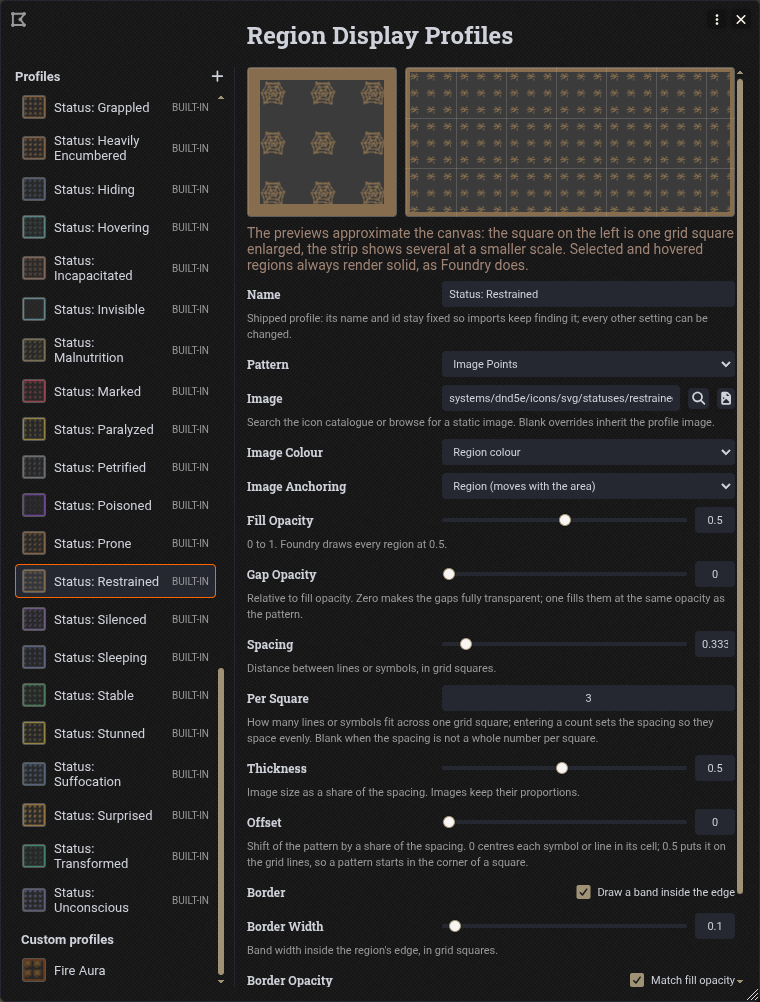
The list on the left holds the profiles, grouped as above, with + at the top to create a new one. The two previews at the top show one grid square enlarged and a strip of several squares at a smaller scale. Selected and hovered regions always render solid, as Foundry does, so the previews show an unselected region.
The main options are:
- Pattern: what fills the region.
- Fill Opacity: how strong the pattern is. Foundry draws every region at 0.5.
- Gap Opacity: how much the space between lines or symbols is filled. Zero leaves the gaps fully clear.
- Spacing and Per Square: how far apart lines or symbols are. Per Square is the easy way to set it, for example 3 symbols across each grid square.
- Thickness: line width or symbol size, as a share of the spacing.
- Offset: shifts the pattern. At 0.5 each symbol sits on the grid lines rather than in the middle of a square.
- Line Angle, Lines (dashed or continuous), Dash Length: for the line patterns.
- Border, Border Width, Border Opacity: a band inside the region's edge. Border opacity can be set separately, so the border stays visible when the fill is faint.
- Colour: use the region's own colour, or a fixed colour for the profile.
Other options appear only for the patterns they affect, such as Wave Height for Waves or Cross Rotation for Crosses.
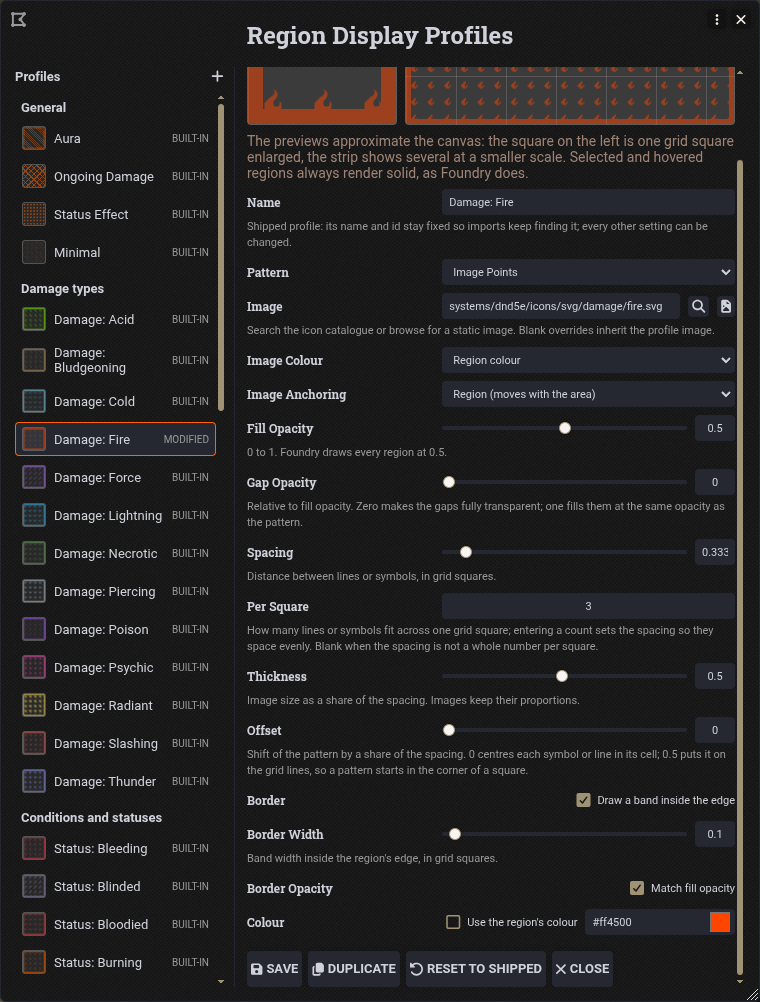
The shipped profiles can be changed, apart from their names. A changed profile shows modified instead of built-in, and gains a Reset to Shipped button. Duplicate copies the current profile as a starting point for your own, and your own profiles can be deleted. Regions using a deleted profile go back to Foundry's look.
Patterns
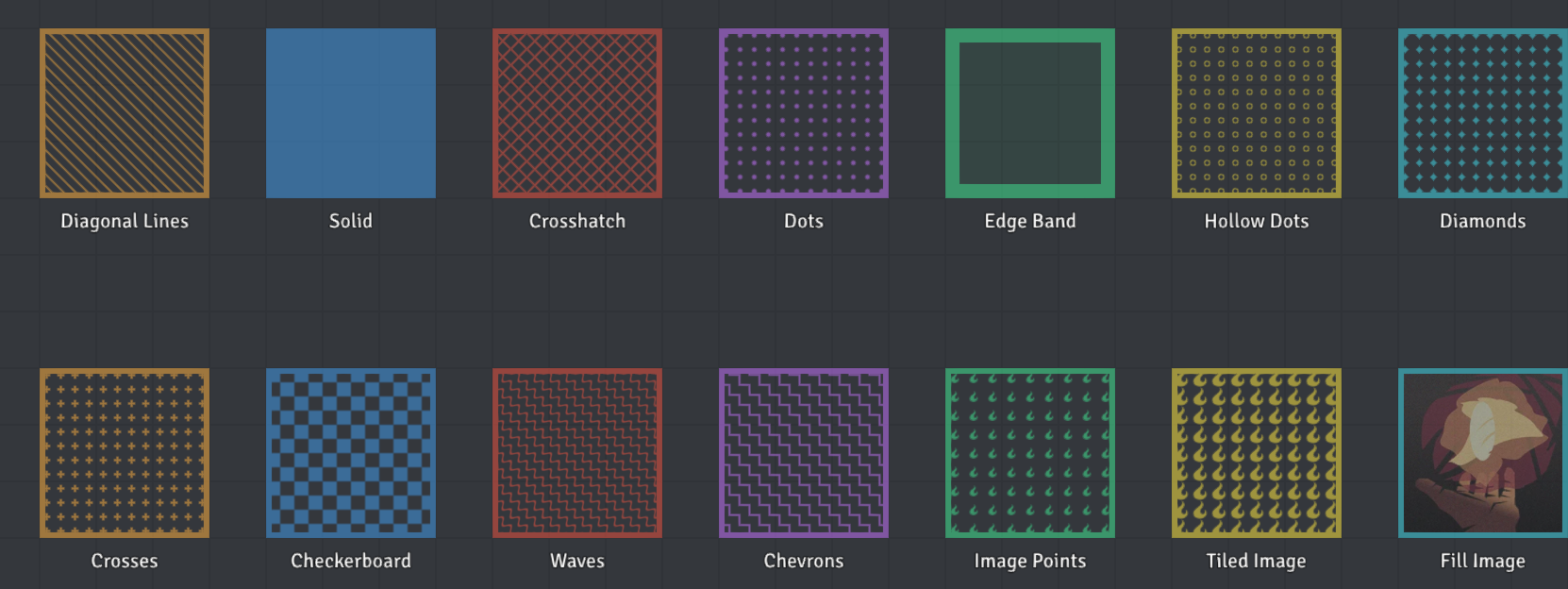
There are 14 patterns: Diagonal Lines, Solid, Crosshatch, Dots, Edge Band, Hollow Dots, Diamonds, Crosses, Checkerboard, Waves, Chevrons, Image Points, Tiled Image and Fill Image.
Images
The three image patterns draw a picture rather than a shape:
- Image Points places the image as a symbol, spaced like dots. The damage and status profiles use this.
- Tiled Image repeats the image edge to edge.
- Fill Image stretches one copy of the image over the whole region.
For these patterns:
- Image: the magnifier opens the Icon Browser to search Foundry's icons, and the file button opens the normal file picker. Use a static image; animated files are not supported.
- Image Colour: keep the image's original colours, or tint it with the region's colour. Tinting works best with single-colour icons, such as the dnd5e damage and condition icons.
- Image Anchoring: align the images to the scene (like the dots pattern) or to the region, so they move with it.
- Image Sizing (Fill Image only): stretch to fit, or keep the image's proportions.
If an image cannot be loaded, the region shows a hatch instead.
Changing one activity or one region
You do not need to edit the shared profile to change a single spell or a single area.
On an activity
On the activity's Effect tab, under Area of Effect Behaviors, the DDB Importer Region Display behaviour shows the current look. Click Configure to change it for every area this activity places from now on. Add one with the + button if the activity does not have one.
A DDB Importer Trigger also has a Display Profile dropdown. When an activity has both, the Region Display behaviour wins.
On a region
Open the region's configuration and look under Highlight Mode on the Appearance tab.
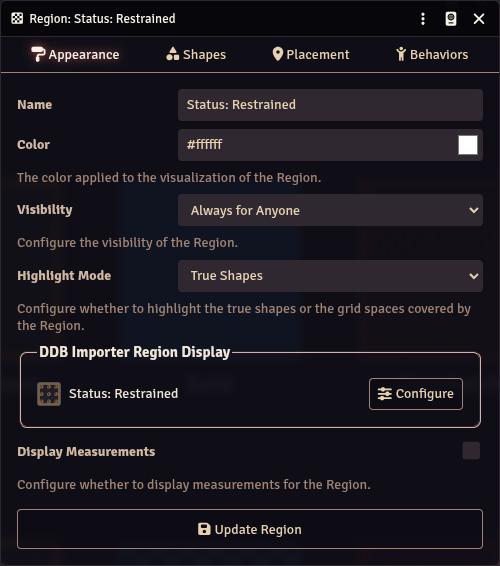
Configure opens the same editor for just this region:
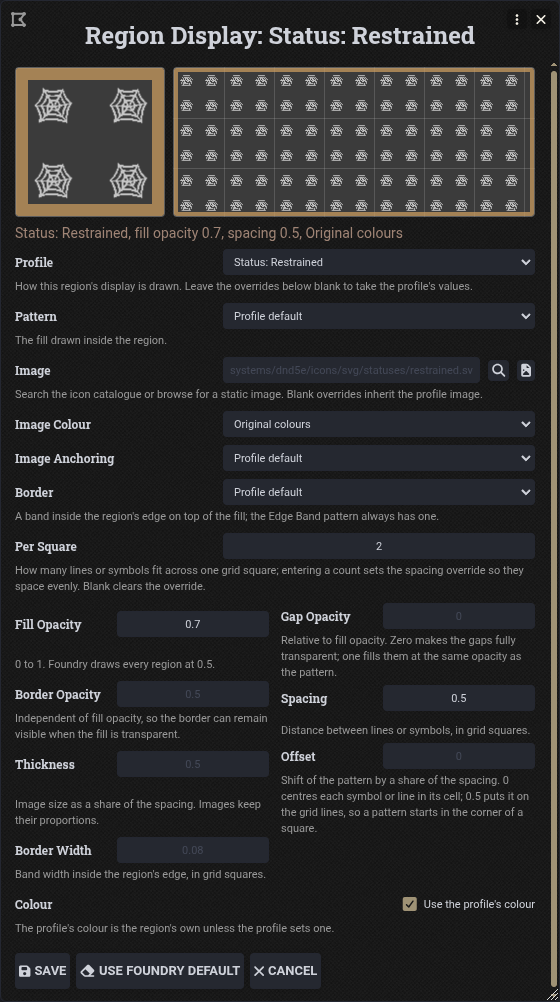
- Profile picks the base look, or None (Foundry default).
- Every other option starts as Profile default and shows the profile's value greyed out. Fill in only what you want to change; the line under the previews sums up the result.
- Save keeps the changes, and Use Foundry Default removes DDB Importer's display from the region altogether.
Players can change the display of regions they own.
Troubleshooting
- Regions look like Foundry's default. Check Enable Region Display Profiles is on and that everyone has reloaded. Content imported before this feature needs to be re-imported to gain a display behaviour; areas already on a scene can be changed from the region config.
- A region shows a hatch instead of its image. The image could not be loaded; check the path, or pick it again with the file button.
- The gear button is missing. Only GMs who can change world settings can edit profiles.