Icon Browser
Search for an icon by name instead of clicking through folders.
Overview
Plenty of imported features, activities and effects end up with a generic icon.
The icon browser searches Foundry's built-in icons by keyword, so you can find a better match without browsing the icons/ folders by hand.
It uses a curated catalogue of around 7,000 of Foundry's core icons, each tagged with what it shows and what it is likely to be used for, as well as the D&D5e damage and condition icons and your world's status icons.
Opening it
Unlock the sheet, then shift-click the image of:
- an item, spell, feat or class feature (the image in the sheet header)
- an activity (the image on its Identity tab)
- an active effect
The browser opens with the search box already filled in from the document's name, with short and common words dropped.
"Cloak of the Bat" searches for cloak bat.
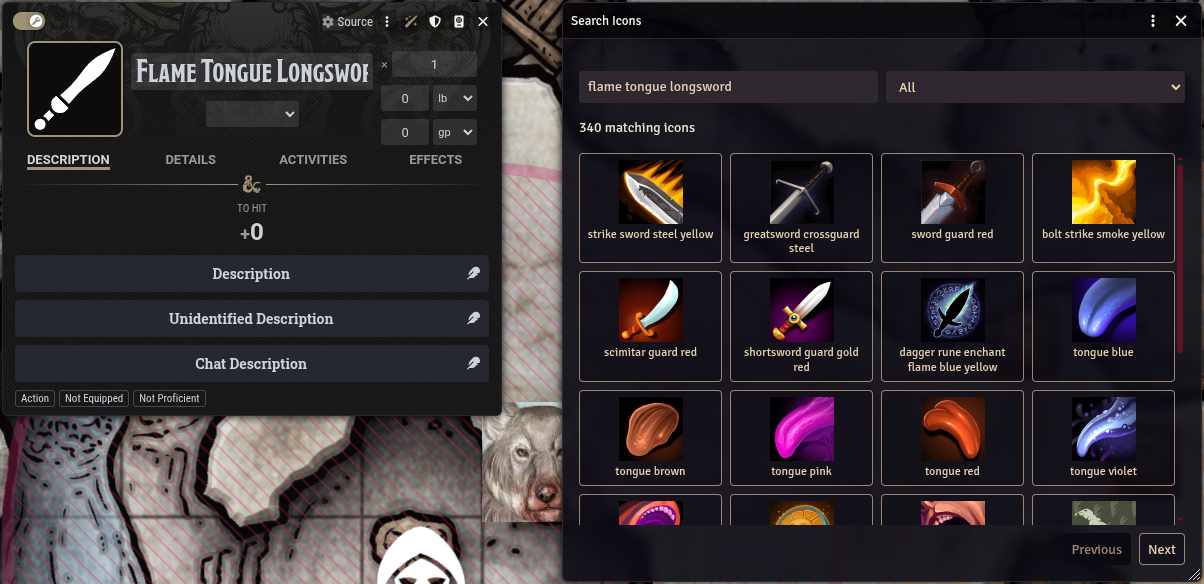
A normal click still opens Foundry's file picker, and on a locked sheet shift-click behaves as it normally does. Actor portraits and token images are not affected.
The browser also opens from the magnifier button next to Image in the Region Display editors.
Searching
Type to search; results update as you go.
- Several words narrow the results, with the best matches first.
- Partial words match, so
glofinds glowing icons. - Plurals match, so
swordsfinds sword icons. - Synonyms are built in for the common themes: fire and flame, cold, ice, frost and snow, lightning and electric, necrotic, death and skull, radiant, holy and sun, poison, venom and toxic, healing and heal, and a few more.
Searching
frost axereturns ice axes.
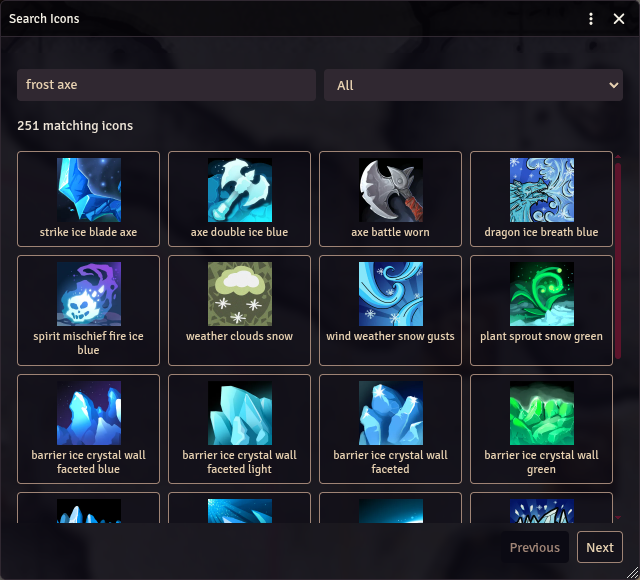
The dropdown next to the search box limits the results to one set of icons:
- All
- SVG Symbols
- D&D5e Damage Icons
- D&D5e Status Icons
- Status Icons (your world's configured status effects)
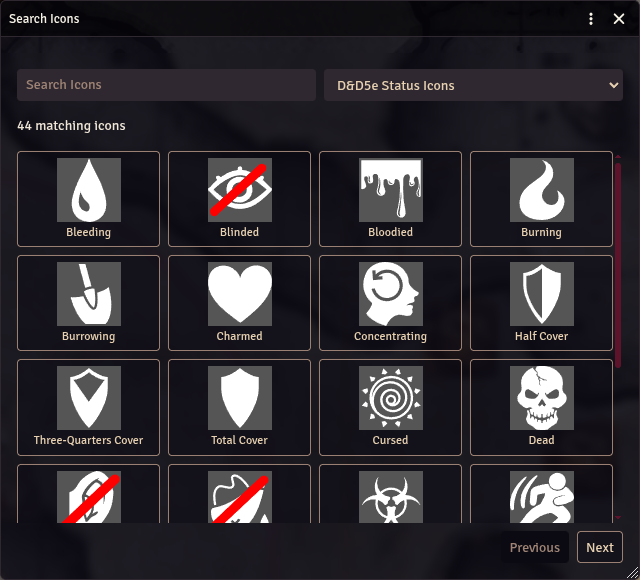
Results show 24 at a time; use Previous and Next to page through them. Hover over an icon to see its full path.
Choosing an icon
Click an icon to use it. The browser closes and the image is saved to the item, activity or effect straight away.
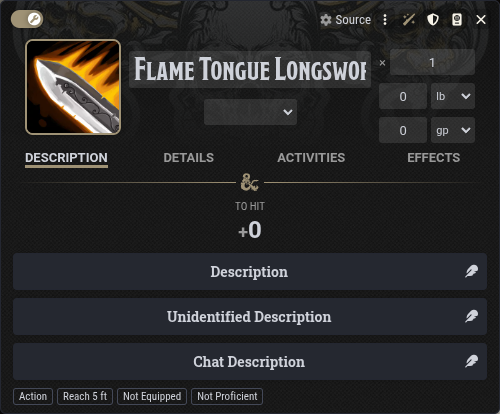
The first time you open the browser in a session it downloads the catalogue, so it can take a moment to show results.
Settings
In Configure Settings > D&D Beyond Importer:
- Shift-Click Opens the Icon Browser: turn this off to have shift-click open the file picker as normal. It is a client setting, so each player can choose. The Region Display magnifier button works either way.
Adding your own images to the DDB Importer icon browser
The icon browser opens when you shift-click an item, activity or effect image while the sheet is unlocked. It searches Foundry's built-in icons, and you can add your own by giving it a JSON file that lists your images.
1. Put your images in the Foundry Data folder
Upload them anywhere under the Data folder, for example worlds/my-world/icons/ or assets/my-icons/.
Subfolders are fine.
2. Generate the list
Open the browser console as a GM (F12, then the Console tab), edit the first line to point at your folder, and paste this in:
const FOLDER = "assets/my-icons";   // your image folder, relative to the Foundry Data folder
const SOURCE = "data";              // "data" for the Data folder, "s3" for S3, "forgevtt" on The Forge

const FilePicker = foundry.applications.apps.FilePicker.implementation;
const extensions = [".webp", ".png", ".jpg", ".jpeg", ".svg"];
async function list(folder) {
  const result = await FilePicker.browse(SOURCE, folder, { extensions });
  const nested = await Promise.all(result.dirs.map(list));
  return [...result.files, ...nested.flat()];
}
const paths = await list(FOLDER);
const icons = paths.map((path) => ({
  path: decodeURIComponent(path),
  name: decodeURIComponent(path.split("/").pop()).replace(/\.[^.]+$/, "").replace(/[-_]+/g, " "),
  tags: [],
}));
foundry.utils.saveDataToFile(JSON.stringify({ version: 1, icons }, null, 2), "application/json", "icons.json");
ui.notifications.info(`Listed ${icons.length} images`);
Your browser downloads an icons.json that lists every image, each with a name taken from its file name and an empty tag list.
The icons are searchable by name as they are, so adding tags (step 3) is optional but makes searching much better.
3. The file format
{
  "version": 1,
  "icons": [
    { "path": "assets/my-icons/frost-giant-axe.webp", "name": "Frost Giant Axe", "tags": ["axe", "ice", "blue", "giant", "weapon"] },
    "assets/my-icons/moon-blade.webp"
  ]
}
| Field | Required | What it does |
|---|---|---|
path | yes | The image path, relative to the Data folder, or a full URL. It must match the file exactly, including capitals. |
name | no | The label shown under the icon, and it is searched. If left out, it comes from the file name (frost-giant_axe.webp becomes "frost giant axe"). |
tags | no | Extra search words. |
manual | no | Also search words; it works the same as tags here. Just use tags. |
Notes:
- Paths only: an entry can be just the path as a string, like
moon-bladein the example above. - Bare list: the file can also be a plain array
[...]without theversion/iconswrapper. - Built-in icons: you can list a Foundry icon path (for example
icons/svg/fire.svg) to add your own name and tags to it; the built-in entry stays. - Bad entries: entries without a path are skipped. A file that fails to load shows a warning and is skipped, and everything else still loads.
Good tags:
- Format: lowercase, single words, singular (
sword, notSwordsorlong sword). Searches already match plurals and the start of a word. - What it shows: the object and its colours (
skull,green,glowing). - What it's for: the theme or use (
poison,necrotic,healing,undead). - Synonyms: a few are built in (fire/flame, cold/ice/frost, lightning/electric, healing/heal), so you don't need to add both.
- Quantity: 5 to 15 useful words per image is plenty.
4. Upload the file and tell DDB Importer where it is
Upload icons.json into the Data folder with Foundry's file browser (for example to worlds/my-world/icons.json).
Then run this in the console as a GM:
await game.settings.set("ddb-importer", "icon-catalog-custom-paths", ["worlds/my-world/icons.json"]);
You can list several files. The setting applies to the whole world, and the next time the icon browser opens it includes your images; no reload is needed.
- Check the current list:
game.settings.get("ddb-importer", "icon-catalog-custom-paths") - Remove them all: set it back to
[]. - After editing a file: re-save it, then reload the page so the browser fetches the new copy.