Muncher Tools
Maintenance tools for your DDB compendiums and world.
Open the Tools
On the right hand side of Foundry click the Compendium section (looks like a book with a world on it). Then click DDB Muncher and select the Tools tab.
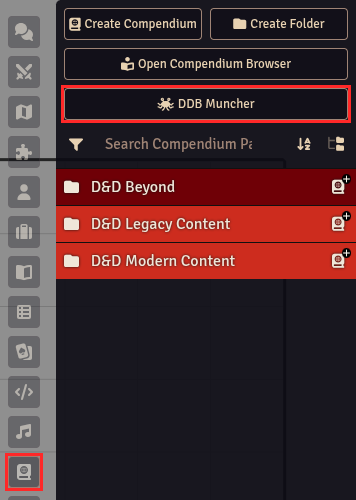
Tools
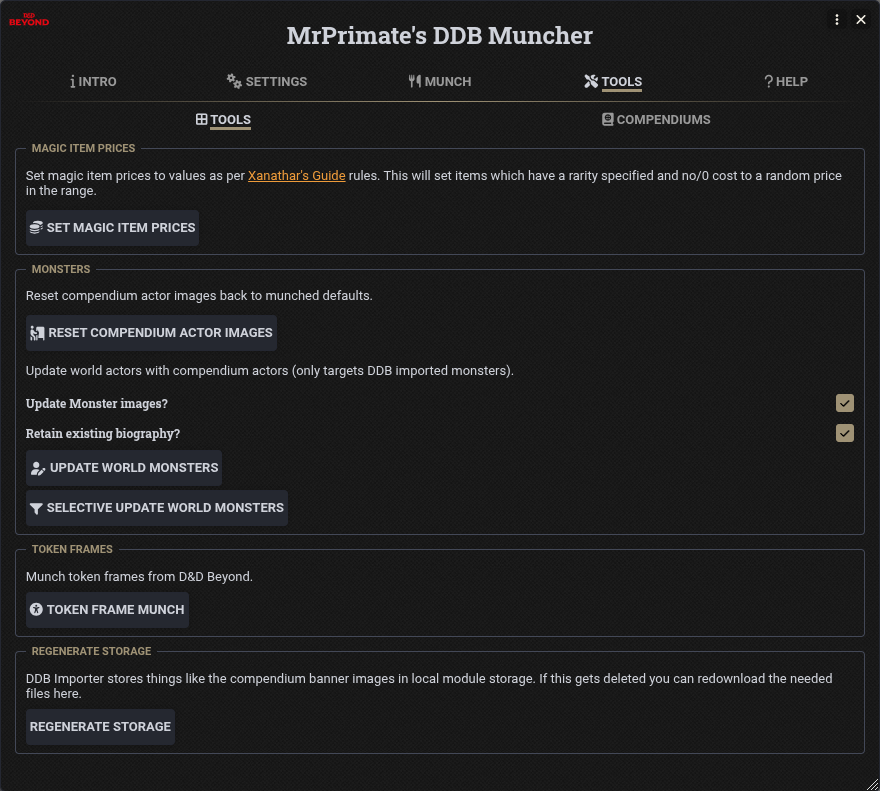
Magic Item Prices
Set Magic Item Prices sets magic item prices to values as per the Xanathar's Guide rules. Items which have a rarity and no (or a 0) cost are given a random price in the range for their rarity.
Monsters
- Reset compendium actor images resets the images on the actors in your DDB Monsters compendium back to the munched defaults.
- Update world monsters updates the DDB imported monsters in your world with the versions in your DDB Monsters compendium.
- Update Monster images? Also update the monster art.
- Retain existing biography? Keep the biography on the world monster.
- Selective update world monsters lets you choose which world monsters to update.
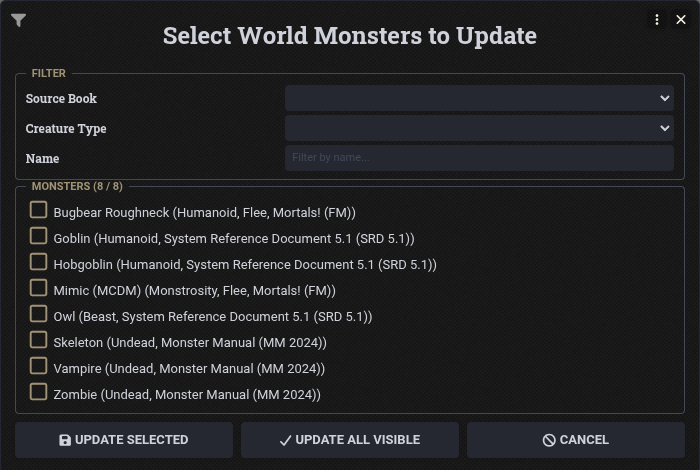
Filter the list by source book, creature type or name, then click Update Selected or Update All Visible.
This updates world actors, not tokens already placed on scenes. See the FAQ for more details.
Token Frames
Token Frame Munch downloads the token frames from D&D Beyond into your frames upload directory, in a folder for each source book. This is available to Patreon supporters.
Regenerate Storage
DDB Importer stores things like the compendium banner images in local module storage. If this gets deleted you can download the needed files again with Regenerate Storage.
Compendiums
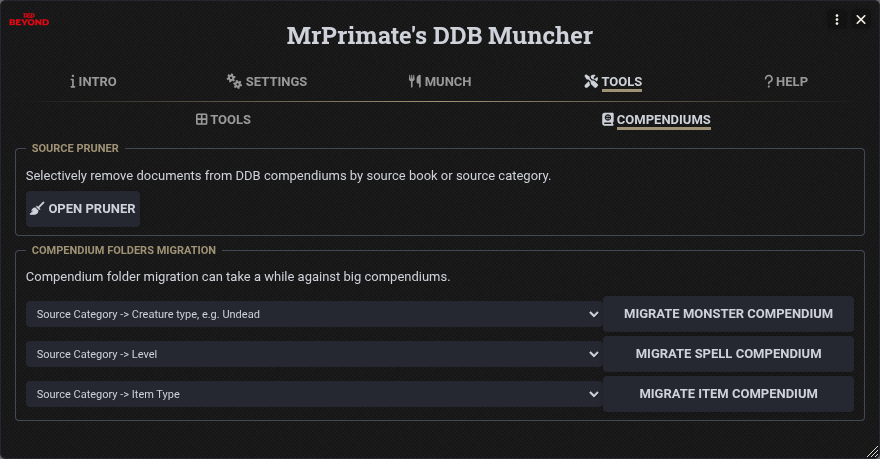
Source Pruner
Open Pruner lets you remove documents from your DDB compendiums by source category or source book.
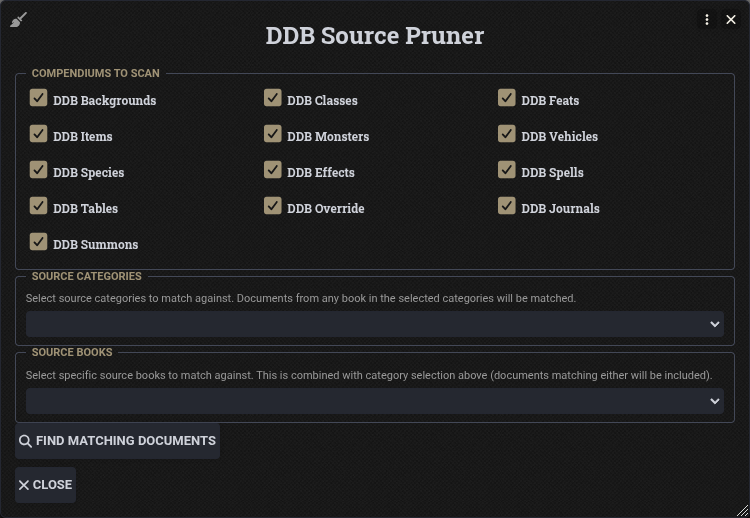
- Tick the compendiums to scan.
- Select the source categories and/or source books to match. Documents matching either are included.
- Click Find Matching Documents to see what matched, grouped by compendium and source.
- Click Delete Matched Documents to remove them.
Deleted documents can't be recovered unless you have a backup.
Compendium Folders Migration
Choose the folder style for your DDB Monsters, Spells and Items compendiums, for example sorting monsters by source category and then creature type. Click the matching Migrate button to reorganise the compendium into those folders.
This can take a while against big compendiums.