The Quick Layout
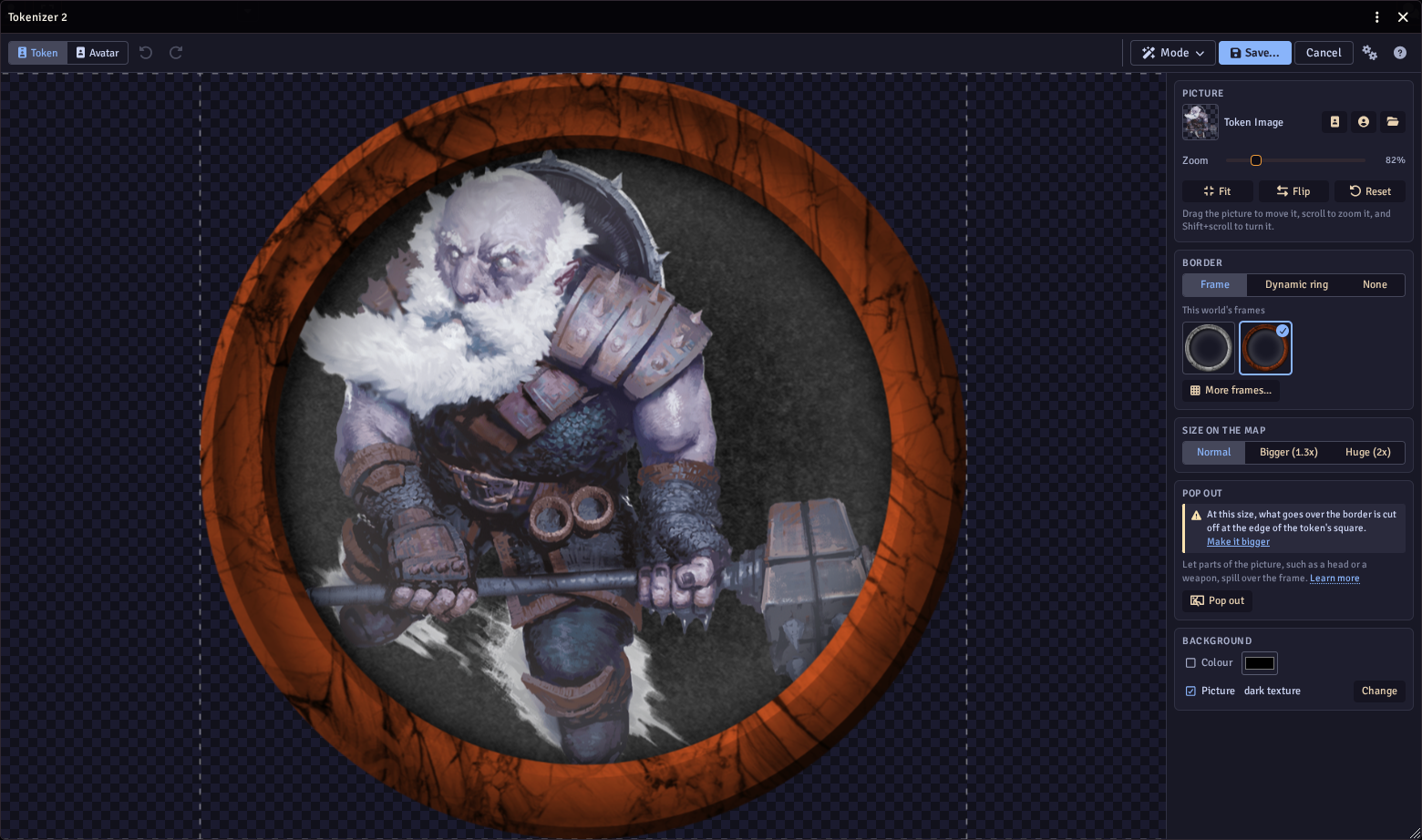
The Quick layout shows your token and one panel, with a card for each part of it. Every change shows on the token straight away, and Ctrl+Z undoes it. Click ? at the top right for a guided tour of the layout.
To pick the layout, or switch back to Advanced, see Quick or Advanced.
Picture
The picture is the actor's art inside the frame.
- Drag it on the canvas to move it.
- Scroll to zoom it, or use the Zoom slider.
- Shift + scroll turns it.
For fine work, Ctrl + scroll (or a trackpad pinch) zooms the view, as do the zoom buttons at the top right of the canvas. Hold Space and drag to move the view, and click the expand button to fit it again. Zooming the view does not change the token.
Fit puts it back in the middle, fitted inside the border. Flip mirrors it, and Reset undoes any moving, zooming and turning. With a frame or Dynamic Ring, Match Frame (or Match Ring) brings the picture's colours toward the border's, so the two sit together; the Pop out copy changes with it. Undo takes it back, and after changing the border, press it again to match the new one. For finer control, the Advanced layout's Grade panel has the same match with a strength setting.
The three buttons beside its name swap in another picture: the actor's portrait, the token's current image or an image file. You can also paste an image with Ctrl+V.
Border
Choose a Frame, Dynamic ring or None.
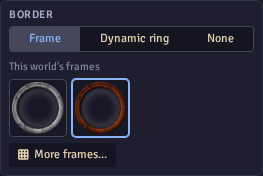
With Frame, click a frame to use it. The frames shown are your first four favourites, the four you used last, and any your GM shared. With no favourites, the frames this world's frame rules give show in their place. More frames... opens the Frame Browser with every frame, and from there the Ring Generator.
With Dynamic ring, Foundry draws its Dynamic Ring round the token on the map. Pick the ring and background colours in the card. A GM can click Manage dynamic rings... to open the Dynamic Rings window and choose which designs Foundry offers.
Size on the map
Bigger (1.3x) and Huge (2x) make the token larger than its square on the map, so its art can spill past the border. With the Dynamic ring, Ring fills square (1.3x) grows the ring with it instead.
Pop out
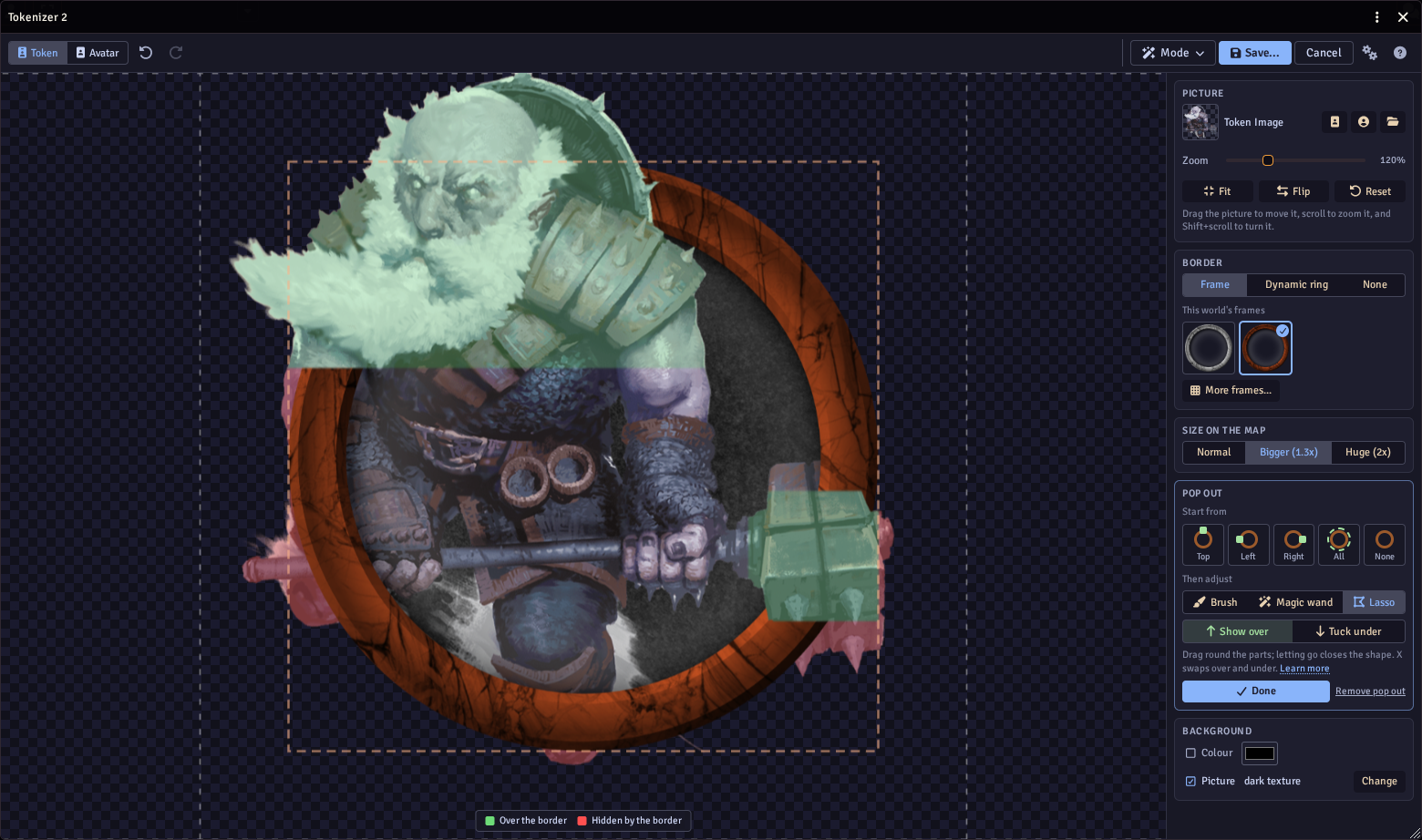
Pop out lets parts of the picture, such as a head or a weapon, spill over the frame. Click Pop out, pick where to start under Start from, such as Top for a head, then adjust with the Brush, the Magic wand or the Lasso. While you mark, what goes over the frame is tinted green and what the frame hides is tinted red. The lasso can drag round the parts, or with Polygon click point to point, and the mouse wheel zooms the view while the wand or lasso marks.
At normal size there is no room past the frame, so when something you marked reaches past the token's square the card warns that it is cut off and offers Make it bigger. Once you click Done, Adjust marks again and Remove pop out takes it away.
See Pop-out Tokens for a walkthrough.
Background
Tick Colour for a solid colour behind the picture, and pick it with the swatch next to it. Tick Picture for a background image, and Change to pick another. Texture uses a Poly Haven texture as the background picture: pick one, drag and scroll it into place, and press Add Texture (see Texture layers). Untick either to hide it.
The portrait
Click Avatar at the top left to make the actor's portrait in the same way. Its Shape card makes it square or portrait shaped.
Save
Click Save... to open the Save dialog, the same as in the Advanced layout. Tick the token, the portrait or both, and click Save.
A player whose saves need approval gets Send to GM instead (see Players and GM approval).
Token images
For a wildcard actor, or one with a set of token images, the Variants strip under the token lists its images, as in the Advanced layout. Right-click one to edit it; when you save, the Save dialog asks whether to replace it or add a new one. See Token Variants for everything the strip can do. To start a set, use the Advanced layout or Save as in the Save dialog.
Advanced edits
Edits made in the Advanced layout, such as painted masks, effects or text, stay on the token. The Quick layout shows them and saves them, and a note under the cards says how many there are. Click the note to open the Advanced layout.