Dynamic Rings
Foundry VTT has its own Dynamic Token Ring: a ring drawn around every token on the map, which can change colour and pulse. Foundry comes with two of them, steel and bronze. Tokenizer 2 can turn any Ring Generator design into a new one, which then shows up in Foundry's own list next to them.
Foundry uses one dynamic ring for the whole world at a time. You can keep as many Tokenizer rings as you like, and choose which of them Foundry offers.
Making a dynamic ring
There are three ways to make one:
- In the Ring Generator, design a ring and press Dynamic Ring, next to Add Frame.
- In the Dynamic Rings window, press New. The Ring Generator opens on a fresh design: pick a theme, change it, and press Dynamic Ring.
- In the Dynamic Rings window, press From picture to use a ring picture you already have (see Rings from a picture).

Once the ring is made, the Ring Generator edits it (see Editing a ring).
Only a GM can make dynamic rings. A player's button reads Export Dynamic Ring instead: it downloads the design as a ring file, which a GM can import.
The Dynamic Rings window
Open it from Settings → Tokenizer 2 → Configure → Token Rings → Manage Dynamic Rings, or from the Ring Tools section of the editor's Rings tab.
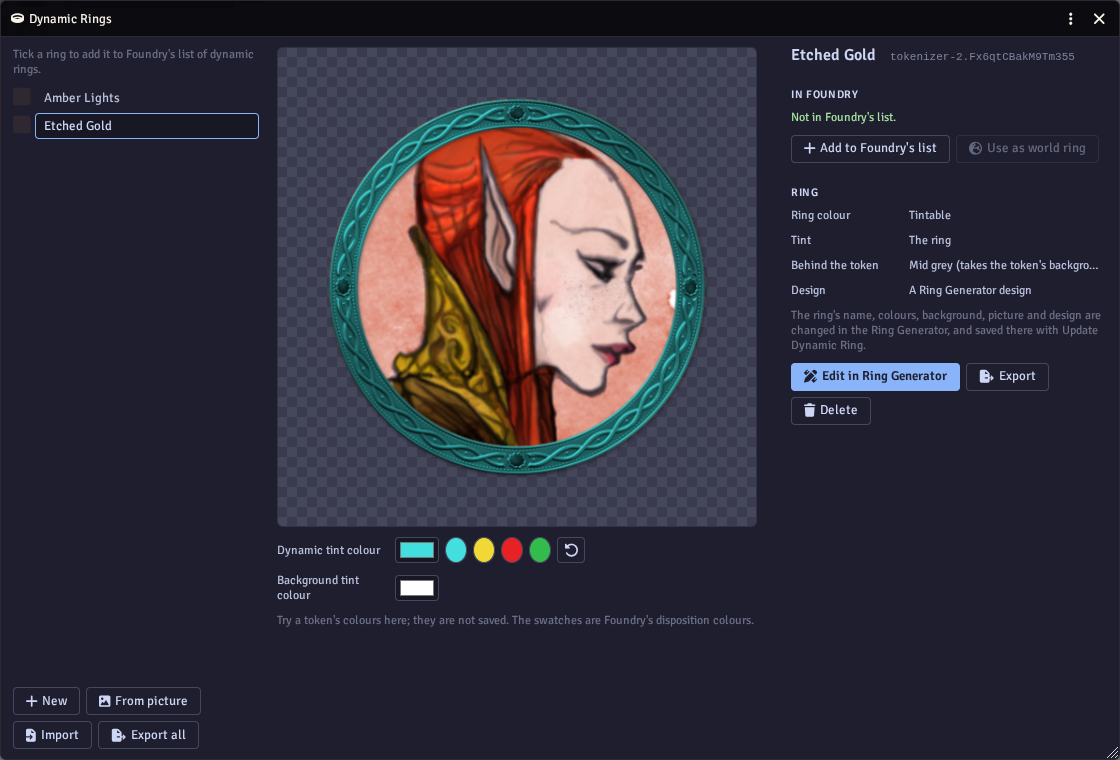
The list on the left holds the world's rings. Tick a ring to add it to Foundry's list of dynamic rings; untick it to take it out. Rings you do not tick stay in Tokenizer but are not offered in Foundry.
The preview in the middle shows the ring as Foundry draws it, around your character's art (or a sample). Under it, Dynamic tint colour and Background tint colour try the colours a token can have (its ring colour and background colour in Foundry); the round swatches are Foundry's disposition colours. These preview colours are not saved.
On the right:
- Add to / Remove from Foundry's list - the same as the tick box.
- Use as world ring - makes this the ring every token in the world uses. It works once the ring is in Foundry's list, and offers to reload straight away, as Foundry only changes rings when the world loads.
- Redraw - draws the ring's image for Foundry again, for example after its files were deleted.
- Ring - how the ring is set up, at a glance: its colouring, what is behind the token, and its design or picture.
- Edit in Ring Generator - opens the ring in the Ring Generator, where everything about it is changed (see below).
- Export and Delete.
Editing a ring
A dynamic ring is edited in the Ring Generator, which opens on it from Edit in Ring Generator, or straight after Dynamic Ring makes it.
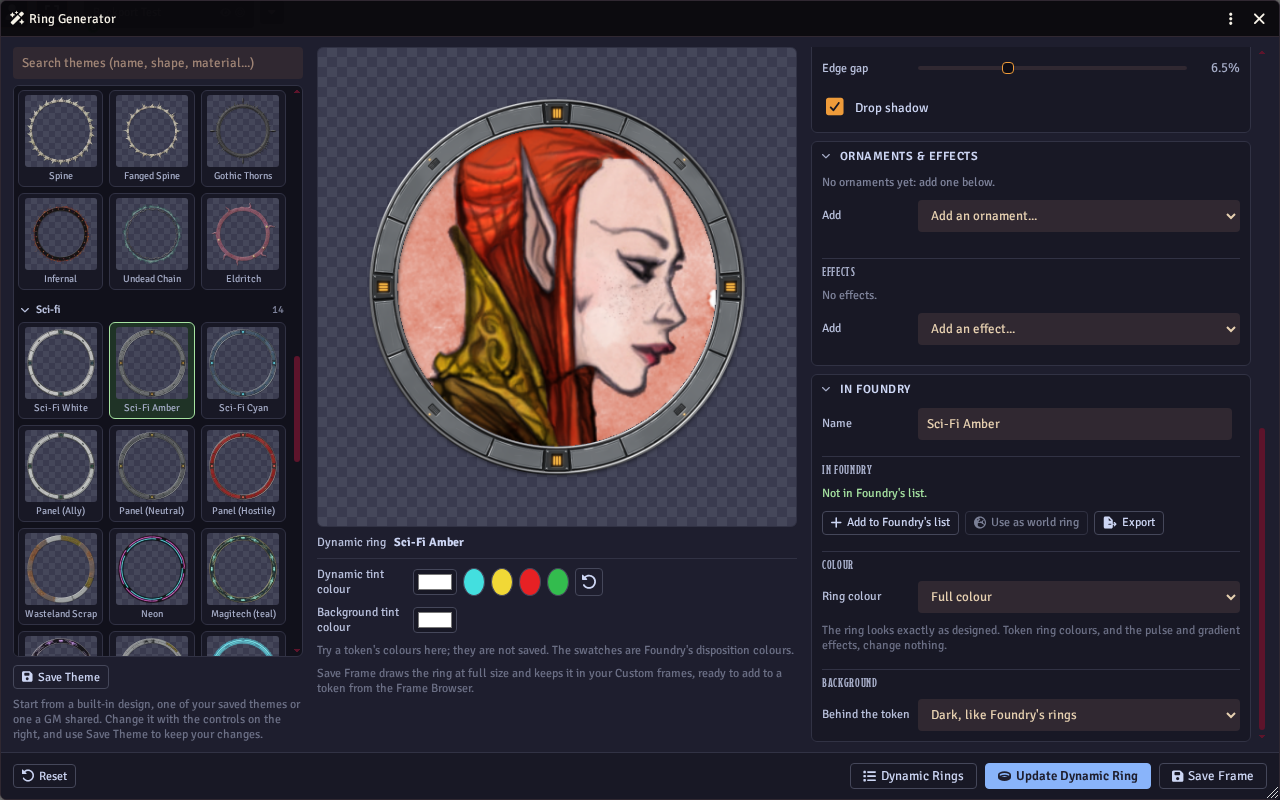
The preview shows the ring as Foundry draws it, around your character's art (or a sample), with the same Dynamic tint colour and Background tint colour try-outs as the Dynamic Rings window. The design is changed as for any ring, in the Shape & Materials, Ornaments & Effects and Finish sections. Below them, the In Foundry section holds the rest:
- Name - the ring's name. Foundry lists it as "Tokenizer: name".
- Add to / Remove from Foundry's list, Use as world ring and Redraw - as in the Dynamic Rings window.
- Export - saves the ring as a file.
- Ring colour - see Full colour or tintable.
- Behind the token - the disc behind the token's art: dark like Foundry's rings, mid grey, the ring's colour darkened, a colour of your choice, a picture or texture, or nothing. For a picture, pick Tokenizer's dark or grey texture, the world's default editor background, or any image with Browse. A token's background tint colour is blended over the picture, keeping its detail; a mid-grey texture takes the colour most faithfully. The background only shows where the token's art is see-through.
Everything is a draft until you press Update Dynamic Ring, which saves the design and the settings together. The Dynamic Rings button next to it opens the Dynamic Rings window on this ring. If the ring is in Foundry's list, Tokenizer draws its image for Foundry again as it saves. Reset puts the ring back as it was saved. Picking a theme in the gallery leaves the ring and starts a new design, and the gallery marks the theme the ring was made from when you reopen it. Closing the window, picking a theme or opening a frame while the ring has unsaved changes asks first.
Full colour or tintable
Foundry can colour a dynamic ring with each token's ring colour, and its Ring Pulse and Ring Gradient effects change that colour. To do that it draws part of the ring in a single colour, so the ring loses its own colours there. Each Tokenizer ring chooses:
- Full colour - the ring looks exactly as designed. Token ring colours and the pulse and gradient effects change nothing.
- Tintable - Foundry colours part of the ring with each token's ring colour. Default colour is the colour of tokens that have no ring colour.
A tintable ring's Tint setting chooses what is coloured:
- The ring - Tokenizer draws the ring in grey and Foundry colours all of it. The default colour starts as the ring's own colour.
- Colours I pick - only the parts of the ring in the colours you pick take the token's colour, such as the lights of a sci-fi ring or the gems of a crown; everything else keeps its own colours. Click the eyedropper, then click the ring in the preview to pick a colour (up to eight), or add one with the colour box. How close sets how near a colour must be to count, and Show the tinted parts in magenta, under the preview, shows exactly what will be coloured. Shading is kept, and a light's white-hot centre stays white. The default colour starts as the first colour you picked, so untinted tokens look as designed.
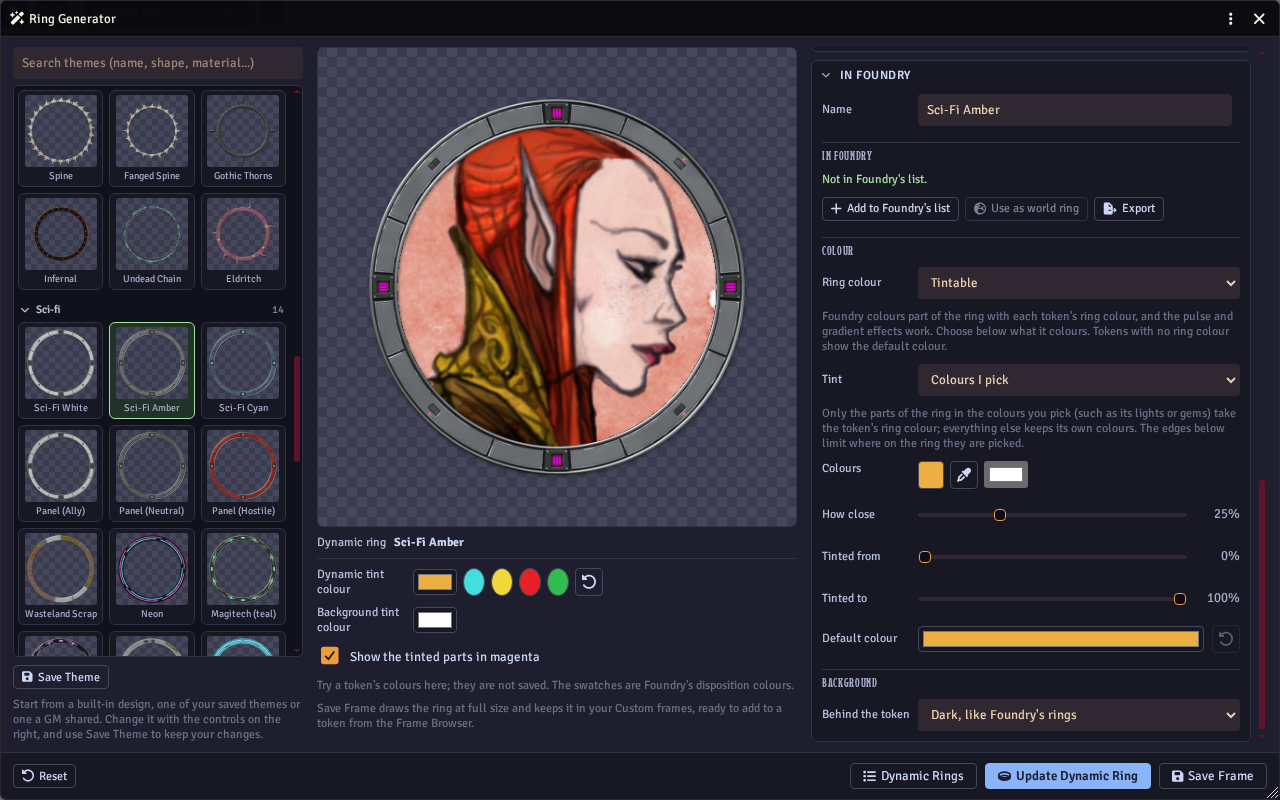
Tinted from and Tinted to limit where on the ring is coloured (all of it by default), for either choice.
With Mid grey behind the token, a token's background colour shows exactly as chosen.
Rings from a picture
From picture opens the Frame Browser: pick any frame there, including your Custom frames, shared frames and frames from other modules, or add one with Browse Files in the Custom tab. A frame you made in the Ring Generator becomes a ring from its design, so you can still edit it in the Ring Generator. Any other picture is measured: Tokenizer 2 finds where its ring starts and ends, and its main colour.
A picture ring opens in the Ring Generator without the theme gallery or design sections, as there is no design to change. A Picture section takes their place.
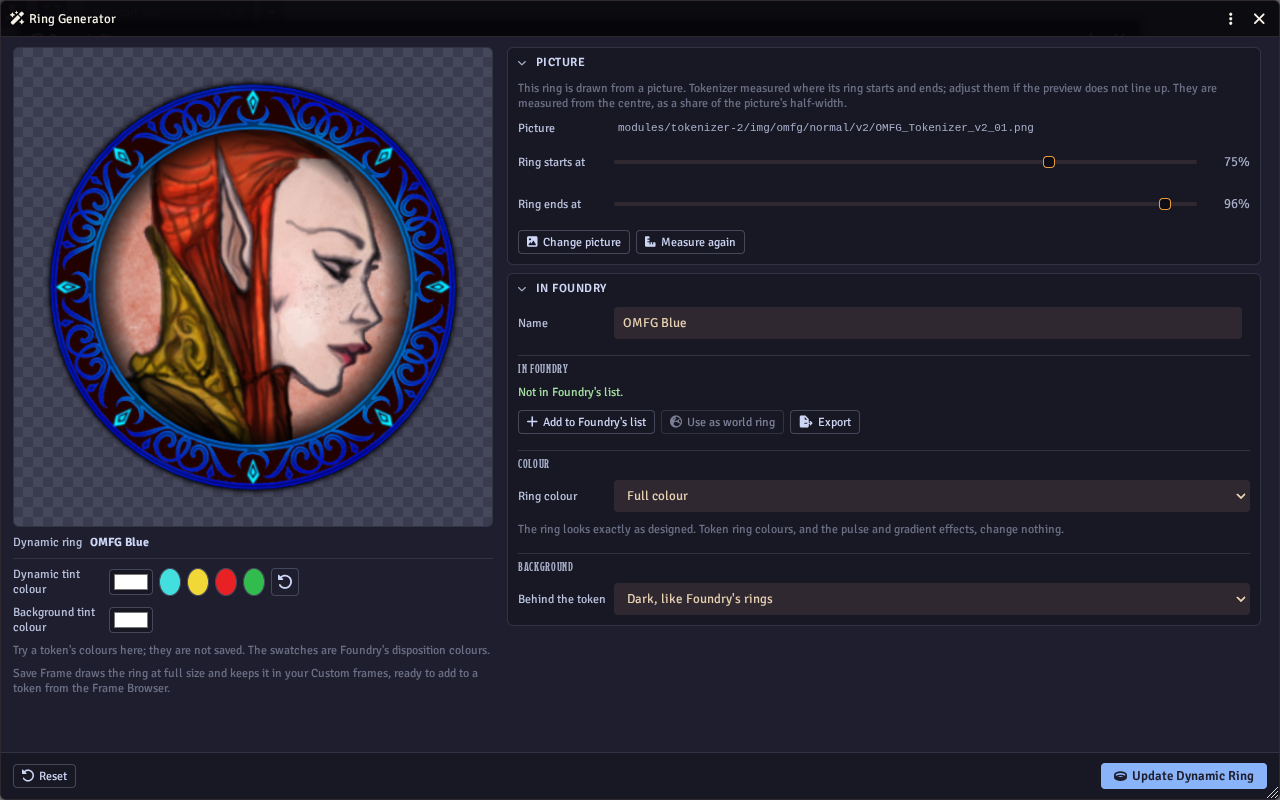
If the preview does not line up, set Ring starts at and Ring ends at by hand; they are measured from the picture's centre, as a share of its half-width. Measure again goes back to the measured values, and Change picture swaps the picture. Pictures should be square, with the ring centred; others are cropped to a square. A picture ring can be full colour or tintable like any other.
Rings that reach past the token
Designs that reach far past the ring itself, such as tall flames or large ornaments, are drawn a little smaller than Foundry's rings so they fit inside the token. The window warns you when a ring is one of these.
Choosing the world's ring
Press Use as world ring in the Dynamic Rings window, or pick the ring in Foundry's own setting: Settings → Core → Dynamic Token Rings.
Foundry reads its dynamic rings when the world loads. After you add, remove or change a ring, the window shows a Reload button; reloading updates every connected player as well.
Taking the world's ring out of Foundry's list, or deleting it, puts the world back on Foundry's steel ring. If Tokenizer 2 is turned off, Foundry goes back to its steel ring too.
In the editor
With the Dynamic Ring on, the editor's ring preview shows the world's ring. It uses the size of ring Foundry picks for the token's size, and colours it as Foundry does. The Rings tab names the world's ring, and when it is a full colour ring the ring colour picker is turned off, because a ring colour would change nothing.
Sharing rings
Export saves one ring, and Export all saves every ring, as a small file. Import reads such a file into another world. A ring the world already has can be replaced or added as a copy. Imported rings are not in Foundry's list until you tick them.
The file holds the ring's design and settings, not its images: Tokenizer 2 draws them again in the world that imports it. A ring made from a picture, or with a picture background, carries the picture in the file, and the importing world saves it in its own Generated Frames folder.
Dynamic rings are also part of the Themes category of a settings backup. A world that imports them keeps its own choice of which rings are in Foundry's list, and draws any images it is missing when a GM next loads it. A backup only holds the path of a picture ring's picture, so use Export for those when the other world is on another server.
Where the files go
Each ring in Foundry's list is saved as an image and a small description file in the dynamic-rings folder inside your Generated Frames folder (see Save Locations).
The image holds the ring at four sizes, for tiny, medium, large and huge tokens.
Tokenizer 2 never deletes these files, as other worlds on the same server may use them.
If the world's ring files go missing, Foundry uses its steel ring until a GM loads the world, which draws them again and offers a reload.