Settings
Tokenizer 2's settings are under Settings → Configure Settings → Tokenizer 2 → Configure, or the cogs button in the editor. Most are for the GM, and apply to the whole world.
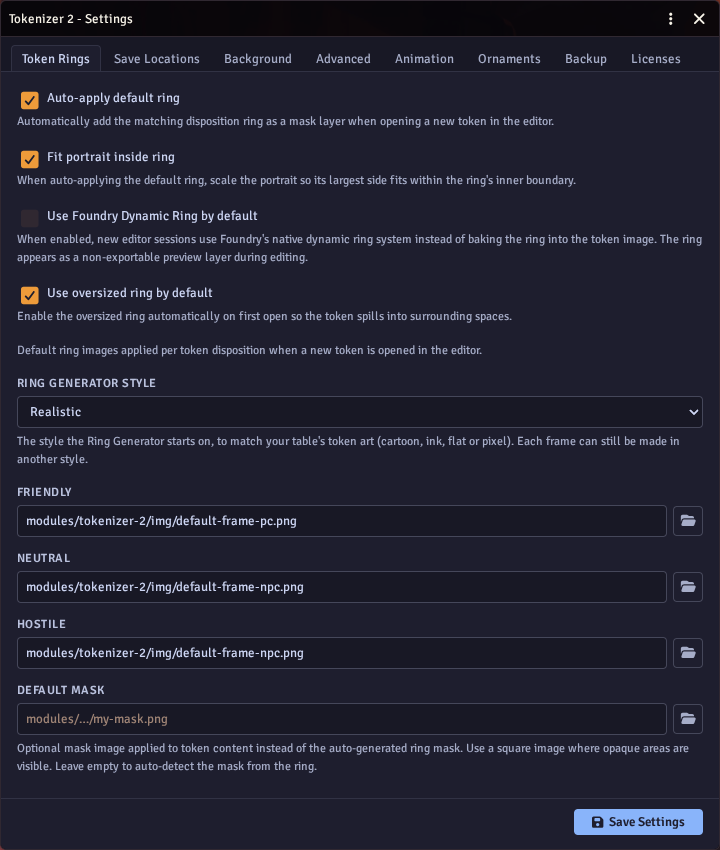
Token Rings
| Setting | Description |
|---|---|
| Auto-apply default ring | Add the disposition ring automatically on first open |
| Fit portrait inside ring | Scale the portrait to fit within the ring's inner boundary |
| Friendly / Neutral / Hostile ring images | Ring images used per disposition |
| Default Mask | Optional mask image used instead of the auto-generated ring mask. Leave empty to detect it from the ring |
| Use Foundry Dynamic Ring by default | Use Foundry's native ring instead of baking it |
| Use oversized ring by default | Make new tokens oversized when the editor first opens them (off by default) |
| Default oversized size | How much larger than its square that makes a token: 2x (the default), 1.3x, or 1.3x with ring fill (a Dynamic Ring token grows whole so its ring fills the square) |
| Manage Dynamic Rings | Opens the Dynamic Rings window: turn Ring Generator designs into Foundry dynamic token rings, choose which Foundry offers and which the world uses |
| Ring Generator style | The style the Ring Generator starts on (realistic, cartoon, ink drawing, flat, pixel art, line art, woodcut, comic halftone or watercolour), to match your token art |
| Style settings | What that style draws with: ink and paper colours, hatch, stroke or dot spacing, pixel size or watercolour edge bleed (see Ring Generator). The Ring Generator starts on them, and number badges, ornaments and conditions on tokens are drawn with them |
Save Locations
These are the defaults for the Save dialog.
Working files (masks, erase and liquify results) go into dated folders under tokenizer/_masks and tokenizer/_cache, so you can clean them up by date.
| Setting | Description |
|---|---|
| PC / NPC Tokens Folder | Where tokens are saved |
| PC / NPC Avatars Folder | Where avatars are saved |
| Pasted Images Folder | Where clipboard pastes are uploaded |
| Reusable Masks Folder | Where masks saved for reuse are uploaded |
| Generated Frames Folder | Where frames made with the Ring Generator are uploaded |
| Linked / Unlinked Token Name Template | Token filename template ({{name}}, {{id}}, {{tokenId}}) |
| Linked / Unlinked Avatar Name Template | Avatar filename template |
Name templates can use any field on the actor, for example Token.{{name}}-{{system.source.book}} in 5e.
Actors with a player owner, or of type character or pc, use the PC folders.
Background
| Setting | Description |
|---|---|
| Auto-apply default background | Add a background image as the bottom layer on first open |
| Background Image | The default background image |
| Auto-apply default color layer | Add a solid colour layer at the bottom on first open |
| Default Color | Colour for that layer, and for new colour layers |
Advanced
| Setting | Description |
|---|---|
| Export Image Size | Resolution of the saved image |
| Export Image Format | WebP (default) or PNG |
| Image Proxy URL | Proxy for external image URLs, to avoid CORS errors |
| Frame Mask: Ray Edge Detection | Default edge detection for frame masks: Highest Alpha or First Opaque |
| Frame Mask: Ray Sample Size | Default ray density for frame masks (1 is densest) |
| Save Regular Texture with Dynamic Token | Also write the image to the token's normal texture when saving a dynamic ring token |
| Save Dynamic Ring into Regular Texture | With the setting above, the normal texture gets the dynamic ring drawn in (saved as a second image ending in -ring), so the token keeps its ring if the dynamic ring is turned off. On by default |
| Hide Token Frames module integration | Hide the Token Frames tab |
| Lightweight Mode | Keep working files in memory instead of uploading them; the layer stack is not saved, so the editor starts fresh each time |
Ornaments
Ornaments from actors and conditions on tokens. See Ornaments and Conditions on Tokens.
Number Badges
Numbering copies of the same creature, the default badge design (and the Badge Designs editor for your own), where badges sit on their tokens, and the rules that pick a design for each creature. See Number Badges.
Animation
| Setting | Description |
|---|---|
| Frames per second | Animated token FPS (default 24) |
| Max duration | Longest loop in seconds (default 3) |
| Bitrate (Mbps) | Video bitrate (default 2) |
| Export size | Size of the animated token (default 512) |
| Video codec | VP9 (recommended) or VP8 |
| Encoder | Video encoder; companion modules can add more |
Backup
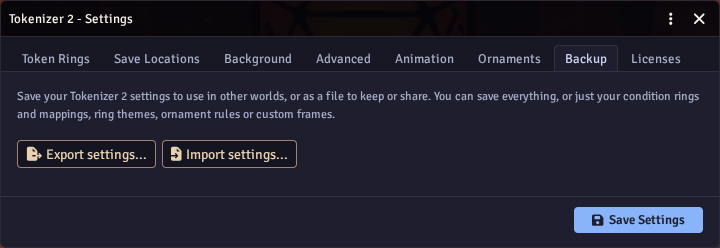
A GM can save Tokenizer 2's settings and load them into another world. Open the Backup tab and choose Export settings... or Import settings....
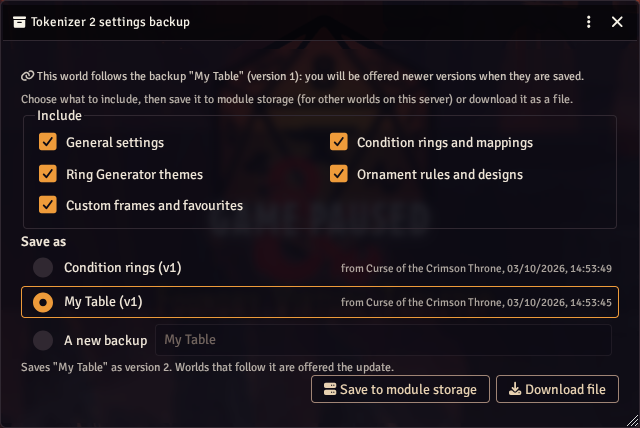
Choose what to include:
- General settings - everything on the other settings tabs, such as save locations, export size and ring colours.
- Condition rings and mappings - your changes in the Condition Rings editor.
- Ring Generator themes - your saved themes and the ones you have shared.
- Ornaments and number badges - which actors get which ornament and how each one looks, and the badge designs, placement and rules.
- Custom frames and favourites - frames and masks you have added, and your favourites.
Under Save as, pick one of the backups already in module storage to save a new version of it, or choose A new backup and give it a name. The list shows each backup's current version, and picking one ticks the same things it held before. Exporting only some categories suggests a name of its own, so a partial backup does not replace the full one.
Then pick where it goes:
- Save to module storage keeps it inside Tokenizer 2's own storage folder on the server. Every world on the server can see it, and it is kept when the module updates.
- Download file saves it as a JSON file, to keep somewhere safe or share with someone else.
The Condition Rings editor has its own Export rings and Import rings buttons, which do the same for just your condition rings and mappings.
Importing
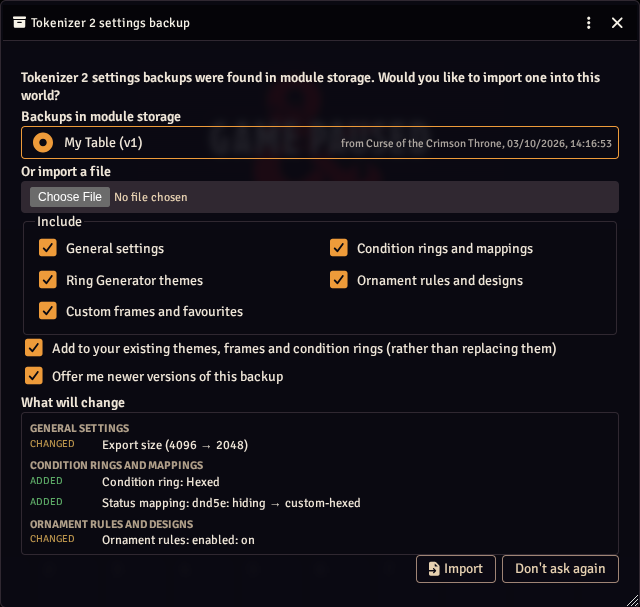
Pick a backup from module storage, or choose a file. Tokenizer 2 lists everything that would change before you import, so you can untick the parts you do not want. By default, themes, frames and condition rings from the backup are added to yours. Shared frames and frame groups are matched by group name, and merged frame by frame. Untick Add to your existing... to replace yours with the backup's instead, and the list shows what would be removed.
Some settings only take effect after a reload, so Tokenizer 2 offers to reload Foundry once the import is done.
When a GM opens a new world and there are backups in module storage, Tokenizer 2 offers to import one. Choose Don't ask again if you do not want one.
Versions and updates
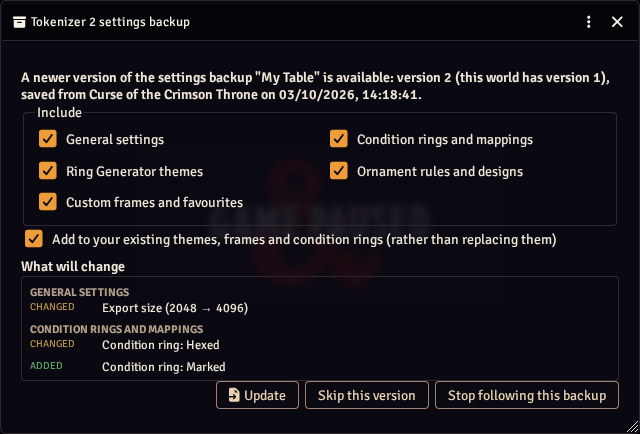
Saving to module storage again under the same name makes a new version of that backup. A world that imported a backup from module storage follows it. When a newer version is saved, the GM of that world is offered the update the next time they load it, with a list of what changed. You can Update, Skip this version, or Stop following this backup.
This makes it easy to keep several worlds in step: make your changes in one world, save the backup again, and the other worlds pick them up.
Backups only hold settings. Images that settings point to, such as custom frames or pictures in condition rings, are not copied, so they need to be somewhere the other world can reach.
Module Settings
These few are in Foundry's own module settings list, outside the Tokenizer 2 window.
| Setting | Description |
|---|---|
| Disable portrait click | Open the normal file picker on portrait click instead of Tokenizer 2 (Shift+click does the opposite) |
| Per-user portrait click preference | Each user can override the world default |
| Show sheet header button | Show the Tokenizer 2 button in actor sheet headers |
| Require asterisk in wildcard path | Only treat a token as a wildcard when its path contains * |