Auto Token a Compendium
Auto Token makes tokens for every actor in an Actor compendium in one go, without opening the editor for each one. It can give each kind of creature its own frame, and give every token a ring of its own.
Starting a run
Auto Token is for GMs.
- Open the Compendium Packs sidebar.
- Right-click an Actor compendium and choose Tokenizer 2: Auto Token.
- Choose your options; the preview on the right shows one actor from the pack as it will look.
- Press Start.
The window shows each actor's name as it works through the pack, then how many tokens were made and how many failed. It cannot be closed while a run is going.
Each token is saved to your NPC or PC token folder (see Settings) and set as the actor's prototype token image. Its layers are kept, so you can open any of them in the editor afterwards and change it.
Actors in a locked compendium cannot be changed, so unlock the compendium first. To tokenize actors in a world folder instead, use the folder macro.
Options
Frame
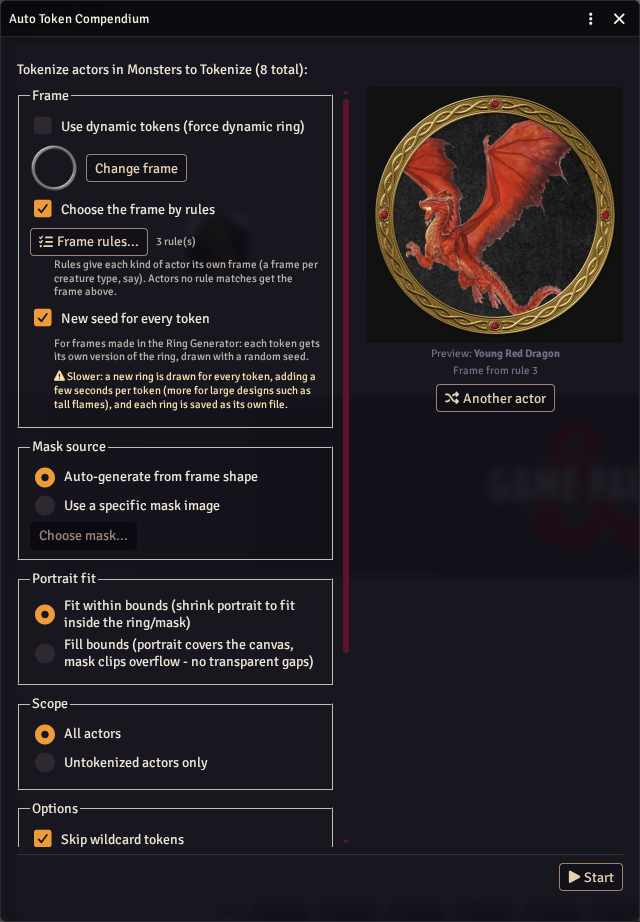
- Use dynamic tokens - give tokens Foundry's Dynamic Ring instead of a frame drawn into the image.
- Change frame - choose the frame from the Frame Browser. It starts as the preview actor's usual frame, from your default frame settings.
- Choose the frame by rules - give different actors different frames; see A frame for each kind of actor.
- New seed for every token - give every token its own version of a Ring Generator frame; see A ring of its own for every token.
Mask source
- Auto-generate from frame shape - each token is cut to the inside of its frame.
- Use a specific mask image - cut every token with the mask you choose.
Portrait fit
- Fit within bounds - the whole portrait fits inside the ring.
- Fill bounds - the portrait fills the token, and the mask trims what is outside it, so there are no gaps.
Scope and options
- All actors or Untokenized actors only - the second skips actors that already have a Tokenizer 2 token.
- Skip wildcard tokens - leave out actors whose prototype token uses a random (wildcard) image.
Subject image
- Token image - start from the actor's current token image.
- Avatar image - start from the actor's portrait.
Wildcard handling
For wildcard actors that are not skipped:
- Keep wildcard path - the new image is saved, but the prototype token keeps its wildcard path.
- Remove wildcard - the prototype token uses the new image and Randomize Wildcard Images is turned off.
Preview
The preview shows a random actor from the pack. Another actor shows a different one, which is handy for checking your frame rules. When frame rules are on, the line under the preview says which rule gave that actor its frame.
A frame for each kind of actor
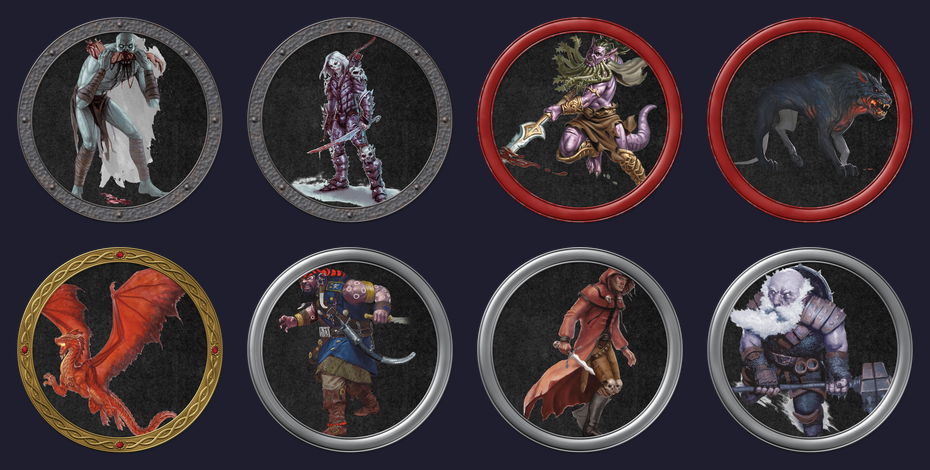
Tick Choose the frame by rules to give actors different frames by what they are: undead in bone, fiends in red, dragons in gold, say. Press Frame rules... to open the rules.
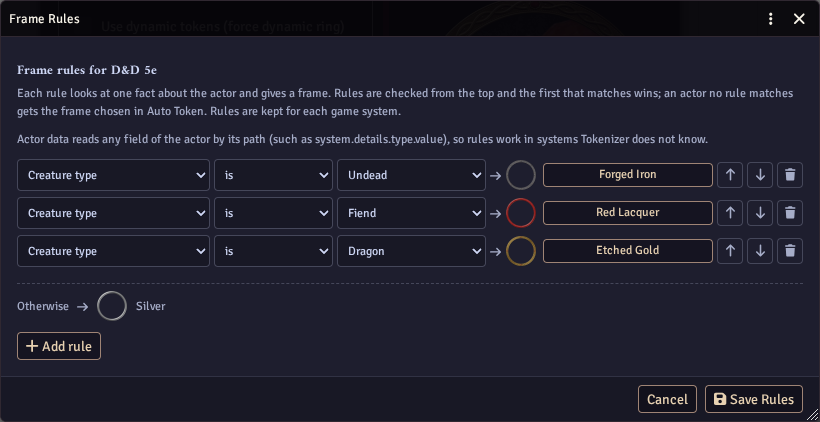
Each rule looks at one fact about the actor and gives a frame, and reads like a sentence: Creature type is Undead → Forged Iron. Press Choose frame... on a rule to pick its frame in the Frame Browser.
Rules are checked from the top, and the first one that matches wins, so put the most particular rules first. For example, put Challenge rating at least 15 above Creature type is Dragon if great wyrms should get a different frame from the other dragons. Use the arrows to move a rule up or down, and the bin to remove it.
The Otherwise line shows the frame for actors that no rule matches: the one chosen with Change frame.
Press Save Rules to keep them. Saving switches the rules on, and the window shows how many there are. Auto Token remembers whether the rules were on, so the next run starts the same way.
What a rule can test
Rules use the same facts as ornament rules:
- Every system - player character, non-player character, disposition and actor type.
- D&D 5e - creature type, challenge rating, level, legendary, has a lair and tier.
- Pathfinder 2e and Starfinder 2e - traits, level, rarity, elite, weak and tier.
- Shadowdark - level, alignment and tier.
Numbers can be tested with is, is not, at least and at most. Traits are tested with has and does not have.
Actor data: rules for any system
Actor data reads any field of the actor by its path, so you can write rules in game systems Tokenizer does not know. Type the path under the menu, then the value to test. Some examples:
- D&D 5e size:
system.traits.sizeistiny. - Pathfinder 2e size:
system.traits.size.valueisgrg(gargantuan). - Pendragon glory:
system.gloryTotalat least1000.
Numbers are compared as numbers, and text ignores capital letters.
has finds a value in a list, or a word in a piece of text.
To find a field's path, open the browser console (F12) and look at an actor with game.actors.getName("Goblin").system.
Rules for each game system
The facts differ between systems, so rules are kept for each one: the rules you write in a Pathfinder 2e world do not appear in a D&D 5e world. They are a world setting, included in Custom frames and favourites when you back up your settings.
Frame rules only apply to frames drawn into the token, so they are switched off while Use dynamic tokens is ticked.
A ring of its own for every token
Frames made in the Ring Generator, and the sample frames, are drawn from a design with a seed. Tick New seed for every token and each token gets the design drawn again with a random seed: the same ring, but with its own scratches, wear, flames or leaves. It works with frame rules too, for every rule frame that came from the Ring Generator.
The box can only be ticked when one of the frames tokens may get came from the Ring Generator.
This is slower.
Each ring takes a few seconds to draw, more for large designs such as tall flames, so a big compendium can take a good while longer.
Each ring is also saved as its own file, in a variants folder inside your Generated Frames folder.
From a macro or another module
The same choices are available to scripts:
Tokenizer2.promptConfig()opens this window without the compendium options and returns the choices, including the frame rules and new seed, to pass totokenize().tokenize()takesframeRulesandnewFrameSeeddirectly.
See Frame rules and new seeds in the API guide. The folder macro has both options ready to switch on.