Coat of Arms
The Tokenizer 2 - Coat of Arms companion module rolls heraldic coats of arms. It's inspired by Pendragon 6th edition.
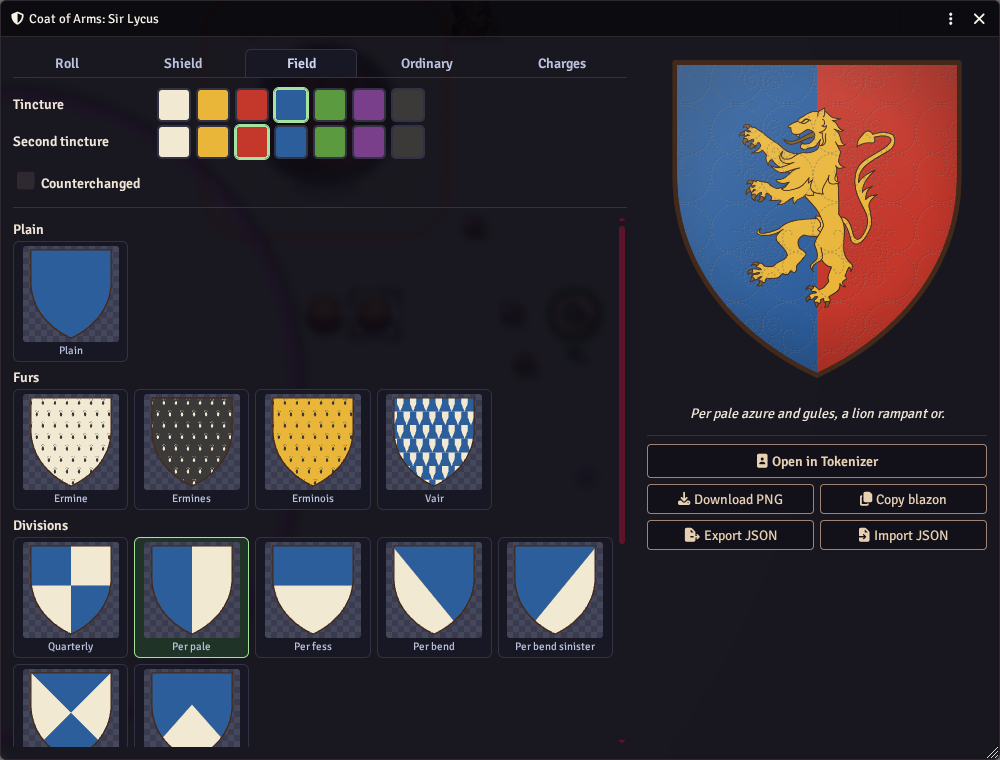
Each roll follows the book: a shield design, tinctures by the rule of tincture, then the charges. The result is drawn on a flat, slightly aged shield, and comes with its blazon ("Vert, on a chief argent a wolf sable") and the log of the rolls that made it. Every charge the tables can give has a picture: beasts, birds, monsters, people, objects, plants, buildings, crosses and the geometric charges. The pictures are heraldic drawings from Wikimedia Commons, many of them from the plates of century-old heraldry books, recoloured in the charge's tincture (see Picture credits).
In the token editor
Open the editor and choose the Coat of Arms tool (the shield icon). It opens the Coat of Arms window on a freshly rolled coat, and the panel shows a preview and the blazon.
The window has a preview and the blazon on the left, and tabs on the right, each choosing from pictures:
- Roll rolls again (Roll New Arms; type a seed first to get the same arms back later), turns the book's optional rules on and off (beasts shown by their head alone, a chance of an extra charge, quadrupeds rolling for their attitude, ordinaries swapping paint with a patterned field), and lists every roll.
- Shield picks the shape (heater, round, banner or lozenge) from tiles of your arms, and the damask, the faint pattern pressed into the paint: Scrolls, Lattice, Brocade or None.
- Field picks the field from tiles: plain, the furs, every division and every variation, drawn in the arms' own tinctures. The tincture swatches (and the count of a barry or gyronny) stay in view above the tiles, and a semé's charge is chosen below them.
- Ordinary picks the ordinary (or none) from tiles drawn on your field, its tincture, and the charges on it.
- Charges lists the charges: click one's picture or name to open a gallery of every charge by kind, with a search box; below it are tincture swatches (proper included), the count, a beast's attitudes as tiles, head only, and its size and position (see below). How every charge is drawn is chosen at the bottom of the tab.
A beast offers the attitudes (rampant, passant, statant, couchant) and the head alone that there are pictures of. When a roll asks for one there is no picture of, the beast is shown in the attitude its picture has, and the roll log says so.
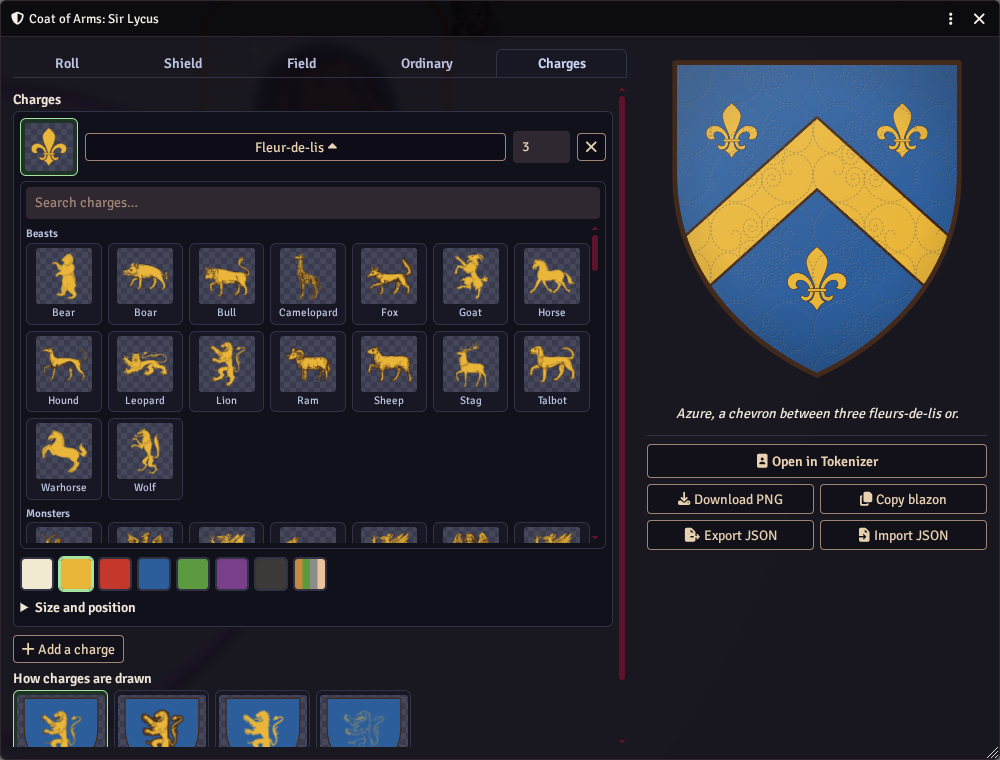
Size and position
Each charge on the field has a Size and position section, closed until you open it (or until the charge has been moved).
- Position puts the charges at one of the shield's nine points: dexter chief, in chief or sinister chief along the top, to dexter, fess point or to sinister across the middle, and dexter base, in base or sinister base at the bottom. Dexter is the viewer's left. As rolled goes back to where the roll put them.
- Several charges at a point in chief or in base stand in a row; elsewhere they keep the usual rows.
- Size makes the charges smaller or larger, from 30% to 250%.
- Nudge across and Nudge down move them a little from there.
- Reset size and position puts the charge back as rolled.
The blazon names a chosen point ("a lion rampant or in dexter chief"). A charge you have moved or resized is drawn over the ordinary, so it shows wherever you put it. Charges on an ordinary keep to it: they have size and nudge, but no position.
How charges are drawn
The bottom of the Charges tab offers four ways to draw the charges:
- Painted, the default, draws them in flat paint with the picture's own lines, and no edge round plain shapes such as mullets, crosses and crescents.
- Bold outline puts the paint inside a heavy dark outline.
- Filled draws each charge in its colour alone, with no lines at all.
- Outline only draws just the edges and lines in the charge's colour, with the field showing through.
Each coat of arms keeps its own choice; the settings pick what new coats start with.
Add to Token puts the arms on the token as an image layer, above the active layer, and closes the window. Move and scale it like any layer. A coat of arms layer remembers its arms: right-click it in the layer list and choose Edit Coat of Arms (or pick the tool while the layer is selected) and the window shows its arms again; Update Layer redraws the layer.
On Pendragon sheets
On a Pendragon character or NPC sheet, click the coat of arms to open the Coat of Arms window (Shift+click still picks a file).
- Save to Sheet (a GM) writes the picture to the character's Coat of Arms and the blazon to Heraldry.
- Send to GM (a player) sends the arms to the GM for approval instead; see below.
- Open in Tokenizer opens the token editor with the arms added as a layer, for anyone who can upload files.
- Download PNG, Copy blazon, and Export JSON / Import JSON take the arms elsewhere.
The first roll for a character is seeded from the character, so the same knight always starts with the same arms until they are saved.
A character with no saved arms opens on the Roll tab; once arms are saved, the window opens on the Field tab.
The window can also be opened for any actor from the API: game.modules.get("tokenizer-2-coat-of-arms").api.open({ actor }).
Players and GM approval
Players design their coat of arms in the same window, but instead of Save to Sheet they have Send to GM. Players usually cannot upload files, so the GM's client draws the picture and saves it to the sheet.
- The player presses Send to GM. The request is kept on the character, and a chat card goes to the GMs. This works when no GM is online: the card waits in the chat log, and the GM is told at their next login how many requests are waiting.
- A GM who is online sees a notification. Review on the chat card opens the Player Requests window, which shows the arms, the blazon, who sent them and for which character. The window can also be opened from Tokenizer 2's settings (Player Requests).
- Approve draws the arms, saves the picture and writes it to the character's Coat of Arms and Heraldry; Decline just clears the request. Either way the player gets a whispered message.
While a request waits, the player's window says since when, and Withdraw Request takes it back. Sending again replaces the earlier request. Only the recipe for the arms is sent (a few hundred characters), never a picture.
Settings
| Setting | What it does |
|---|---|
| Coat of arms folder | Where rendered pictures are saved, in dated subfolders |
| Open from Pendragon sheets | Whether clicking a sheet's coat of arms opens the window |
| Default shield shape | Heater, round, banner or lozenge |
| Damask pattern | The faint pattern new coats of arms start with over their paint: scrolls, lattice, brocade or none |
| How charges are drawn | Painted, bold outline, filled or outline only, for new coats of arms |
| Picture size | 512, 1024 or 2048 pixels across |
Picture credits
The charge pictures come from Wikimedia Commons:
- Most are public domain: tracings of the plates in A. C. Fox-Davies' A Complete Guide to Heraldry (1909), J. Vinycomb's Fictitious and Symbolic Creatures in Art (1906) and older armorials, and drawings their makers released into the public domain or under CC0.
- Some are CC BY, credited to their authors.
- A few charges (among them the bat, crab, spider, harp, anvil, bridge, portcullis, lighthouse and Medusa's head) are only available under CC BY-SA. They are kept in their own folder,
art/charges-by-sa, and a coat of arms drawn with one of them is shared under that licence too. When your arms use one, the Coat of Arms window shows a note under its buttons naming the picture's author, with links to its source and licence. Without that folder, those charges are drawn as a plain roundel.
The damask patterns are also from Commons and public domain: the scrolls and the lattice are heraldic diapers drawn by Bibar (CC0), and the brocade is a Byzantine textile from the Encyclopaedia Britannica (1911).
Every file's author, licence and source is listed in the module's credits files, linked from Tokenizer 2's Settings → Licenses tab.
API
game.modules.get("tokenizer-2-coat-of-arms").api has generate({ seed, rules }) (arms, seed and the roll log), blazon(arms), render(arms, { size, shape, damask, chargeStyle }) (a canvas; damask is scrolls, lattice, brocade or none; chargeStyle is painted, outlined, silhouette or line), normaliseArms(data), open({ actor, state }), ready() (loads the charge pictures), and the ids it uses in charges, tinctures, shapes and chargeStyles.
generate, render and open are async: they load the pictures first.
Arms are plain JSON: a field (tincture, division or variation), an ordinary with its charges, the charges on the field, and for a divided shield of two coats, the two halves.