Token Variants
An actor can keep several token images in a set, such as a character's outfits or a pack of differently marked wolves.
Each image in a set is a variant: a numbered file (wolf-001.webp, wolf-002.webp) with its design, so it reopens in the editor layer by layer.
A set is used in one of two ways:
- Wildcard - each token placed picks one of the set's images at random.
- Picked by hand - the token shows one image, and you switch between them from the editor, the token's right-click menu or the Tokenizer Image Sets window.
Starting a set
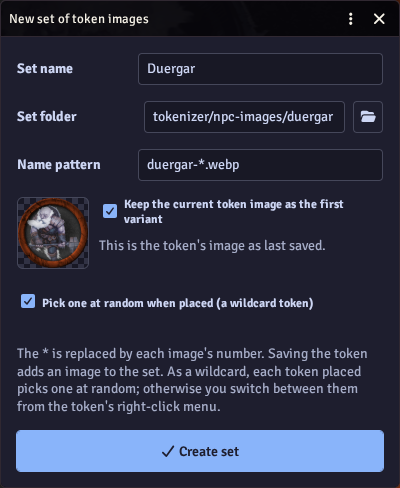
Click New set of token images... (the folder with a plus) in the editor's Variants strip, or New set... in the Tokenizer Image Sets window.
Give the set a name, a folder and a name pattern with one * where the number goes, such as wolf-*.webp.
Keep the current token image as the first variant copies the token's image, as last saved, into the set as wolf-001; a small picture beside it shows which image that is.
Changes you have not saved yet are not in it, so save first, or untick it and save your changes as the set's first image.
Copy images from starts the set as a copy of another one, this actor's or another actor's, to give a second wolf actor the first one's pack, say.
Click Choose set... and search by actor, set or file name to find it; rest the mouse on a set to see its images.
Each image is copied with its design, name and transition, and the set copied from does not change.
Tick Pick one at random when placed to make the set a wildcard.
A set with no images yet can be made a wildcard from its menu once it has one.
The Save dialog can also start a set: choose Start a set of token images under Save as. The image you are saving becomes the set's first and only image. Saved from a token on the scene, that token shows it, and the set is its actor's.
Only the actor (from the Actors sidebar) or a linked token can make a set a wildcard or stop it being one.
An actor can have several sets, for a winter look, say. The list in the Variants strip picks the set your saves go into, and No set saves the token as a single image again.
The Variants strip
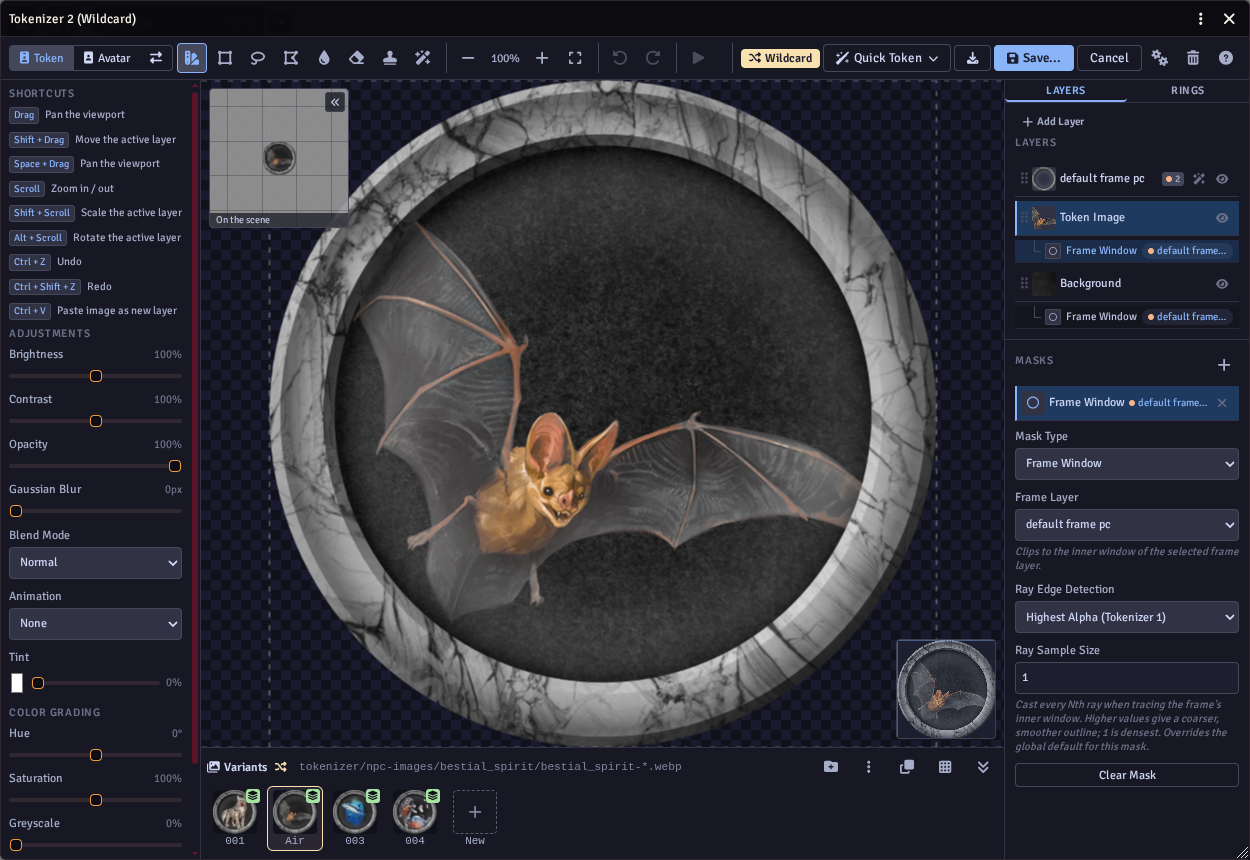
The Variants strip under the canvas shows every image in the token's set. Click a variant to open it; one saved from Tokenizer opens layer by layer, any other as a flat image. New makes another variant, either from a copy of the token on screen or from the actor's portrait. The arrows in the corner fold the strip into a small tab.
Saving adds a new numbered image, taking the first free number.
When you save a variant you opened, the Save dialog asks whether to replace it or save a new one.
Keep the export format matching the pattern's extension (WebP for wolf-*.webp), or Foundry will not pick up the new image.
Each variant can have a name, such as "Winter cloak", shown in place of its number; type it in the Save dialog's Name field. The Transition under it plays one of Foundry's transitions, such as swirl or glitch, when a token on the map is switched to the image.
Right-click a variant to edit it, copy it as a new variant, rename it, give it a transition, use it as the portrait, put it on the selected tokens, or (in a set picked by hand) Make default, the image new tokens start with. The strip's Set options menu makes the set a wildcard or one picked by hand, removes it, or opens the Tokenizer Image Sets window.
Switching a token's image on the map
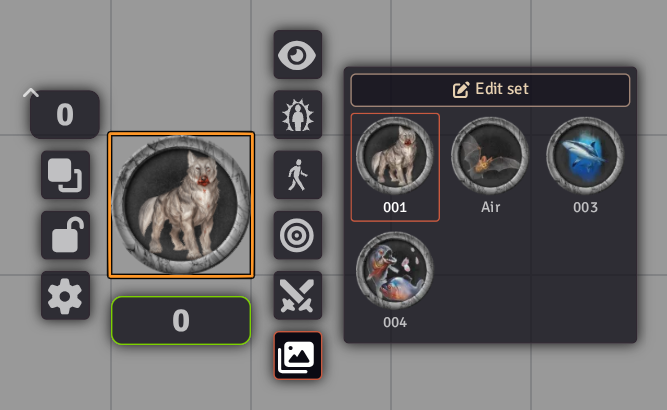
Right-click a placed token and click Token images to see its set. Click an image to put it on that token, with the ring and size it was saved with, playing its transition. Only that token changes, and players can switch their own character's token this way.
If the actor has several sets, a list picks which one to show. Edit set opens the set in the Tokenizer Image Sets window. A token with no set shows Create set instead. The button can be turned off in the settings window's Token HUD tab.
The Tokenizer Image Sets window
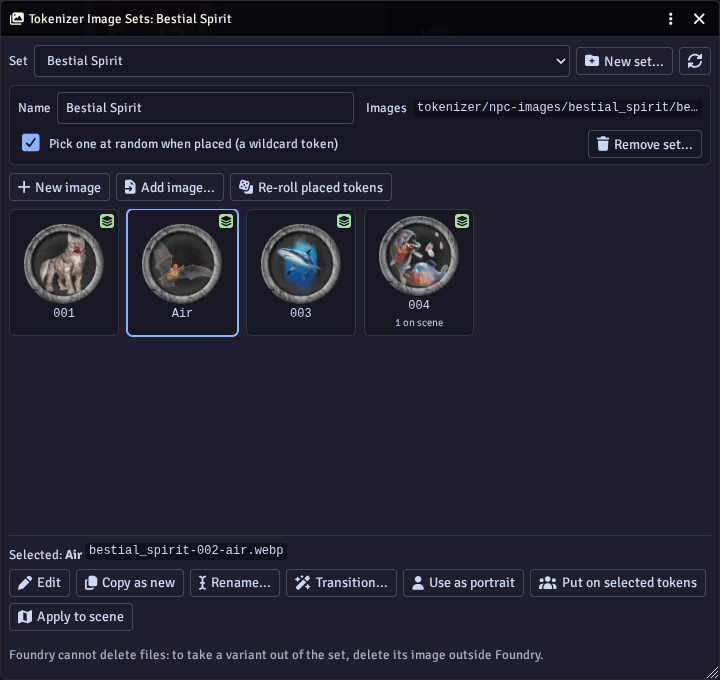
Open it from the actor's menu in the Actors sidebar, Edit set in a token's right-click menu, or the Variants strip.
The top of the window picks the set and holds its settings: its name, whether it is a wildcard, and Remove set.... Below them is every image in the set, marked when it is the portrait, the image new tokens start with, or shown on the scene.
Select an image (or right-click it) to edit it, rename it, give it a transition, make it the portrait or default, or put it on the selected tokens or (Apply to scene) every token of the actor on the scene. New image and Add image... add to the set, and Re-roll placed tokens gives a wildcard's tokens on the scene a new random pick.
Edit, Copy as new and New image open Tokenizer on that image alone, with a note saying which image you are editing. Saving puts it in the set without changing any token or the actor.
Making variants from pictures
To make many variants at once, set up one design (frame or ring, masks, background) and click the pictures button in the Variants strip. Pick the layer each picture replaces, usually the Token Image, add pictures one at a time or a whole folder, and check the preview of each. Save N variants saves each as a new variant with its own design.
Where designs are kept
Each variant's design is kept in a set file in the Wildcard Set Files Folder (tokenizer/_variants by default), not on the actor.
Another world on the same server with an actor of the same name finds the designs too.
Foundry cannot delete files, so removing a set keeps its images and set file, and to take a variant out of a set, delete its image outside Foundry.
Animated layers in a set's variants are saved as still images.