Getting Started
This page walks you through your first import, from building the character in Pathbuilder to checking it in Foundry.
Before you start
Pathmuncher looks everything up in compendiums, so the Pathfinder 2e (or Starfinder 2e) system's compendiums need to be available in your world. They are by default.
If the build uses content from another module, such as Battlezoo Ancestries or Clerics+, enable that module too. Pathmuncher already searches several of these; see Compendium Lookups.
If the character was built with the Free Archetype or Gradual Ability Boosts variant rules, turn on the same variants in the system settings before you import. Pathmuncher warns you if they do not match.
Who can import
The Pathmuncher button appears on a player character sheet for a user who:
- owns the actor,
- has the Create New Actors permission, because Pathmuncher creates familiars as their own actors, and saves a copy of the character if an import fails part way,
- and is a Trusted Player or above, if the GM has turned on Restrict Import to trusted users?.
GMs and players import in exactly the same way.
Export from Pathbuilder
- Open your character in Pathbuilder.
- Open the menu and choose Export JSON.
- Pathbuilder shows an export ID, a number of six or seven digits. Note it down, or choose View JSON to see the export itself.
Open the importer
Create a new Player Character actor, or open the one you want to update. The name does not matter: the import replaces it.
Click Pathmuncher in the sheet's header.

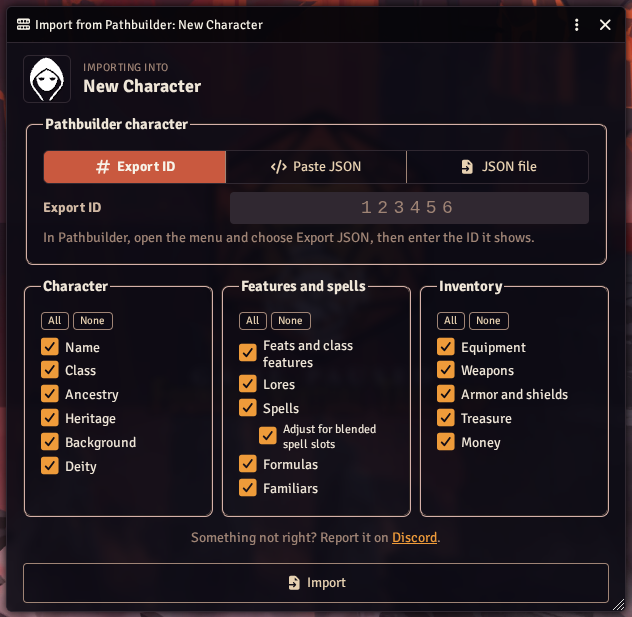
The importer opens, showing the actor it will import into.
Import a character
Under Pathbuilder character, choose how to give Pathmuncher the build:
- Export ID - type in the export ID from Pathbuilder. Pathmuncher fetches the character from Pathbuilder for you. Once an actor has been imported, its ID is filled in for next time.
- Paste JSON - in Pathbuilder's Export JSON window, choose View JSON, copy all of it, and paste it here.
- JSON file - choose a
.jsonfile saved from Pathbuilder's Export JSON window.
If Pathmuncher cannot reach Pathbuilder with the export ID, paste the JSON instead. The result is exactly the same.
Below that are the import options, all ticked to start with. For a first import, leave them as they are.
Click Import.
A progress bar shows each stage as it goes: "Cooking" while the build is worked out, "Eating" while items are written to the actor, and "Clearing up" while old items are removed.
Questions along the way
Pathmuncher may stop to ask you something before it changes the actor:
- a deity that does not allow the domains or sanctification the character chose,
- an ancestry, heritage, background or class it cannot find in any compendium,
- choices that Pathbuilder's export does not record,
- which gun each lot of ammunition is for,
- on a re-import, whether to keep items you added by hand,
- and, with the PF2e Companion Compendia module, which character each companion goes to, and an eidolon's choices (see Animal Companions and Eidolons).
See Choices During Import. Cancel import in any of these leaves the actor exactly as it was.
After the import
The importer closes and the character is ready.
If everything was matched you see "Import completed successfully." Otherwise the Import Notes window lists anything Pathmuncher could not match to a Foundry item, so you can check those by hand.
Then look over the character sheet. In particular, check:
- any feat or feature listed under Rules to check in the import notes,
- spell preparation for prepared casters,
- and anything the system asked you to choose during the import.
Levelling up
Level up in Pathbuilder, export again, and import into the same actor. Pathmuncher replaces what it imported last time with the new build. See Importing again.